How to Get Mouse Click Coordinates (X & Y)
Find a point on your Windows desktop, read its X and Y values, then check that it clicks the intended target. This guide uses the Fixed point picker and manual coordinate fields in Free Auto Clicker 8.1.0.
Download for WindowsWindows 10/11 · x64 · Free · v8.1.0
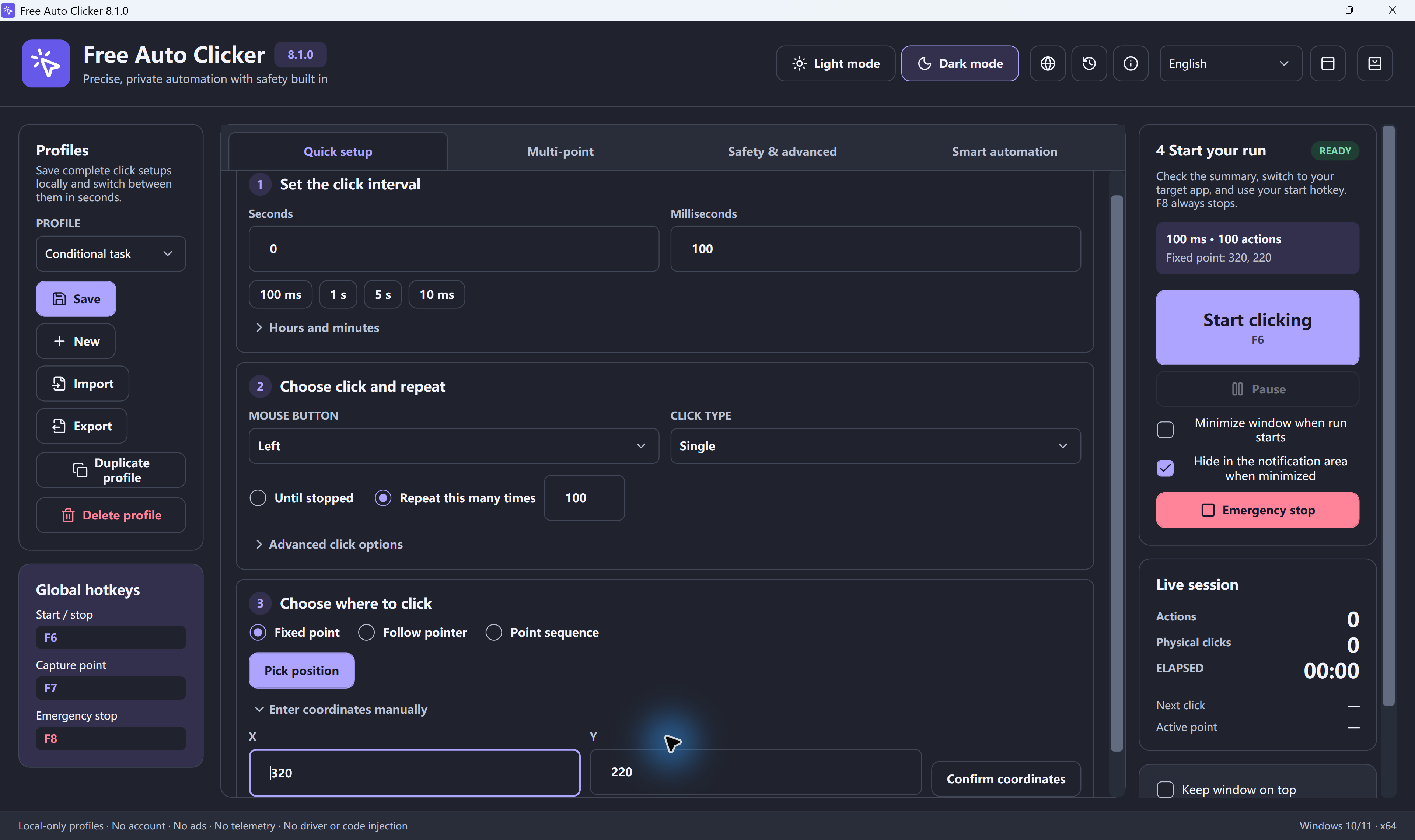
To find a screen coordinate: select Fixed point → Pick position in Quick setup, move to the target and press Space. Review X and Y, then test three slow clicks. The default F7 shortcut also opens the picker; Space confirms the position.
Table of Contents
What are X and Y mouse coordinates?
X describes the horizontal position; Y describes the vertical position. A pair such as X = 320, Y = 220 identifies a screen position, not a button by name. These are the example values in the screenshot, not settings to copy onto a different desktop.
| Value | Meaning on the primary display |
|---|---|
| X | Distance in pixels from the left edge; moving right increases X. |
| Y | Distance in pixels from the top edge; moving down increases Y. |
| 0, 0 | The primary display's top-left corner. A monitor positioned to its left or above it can have negative screen coordinates. |
Capture the point in the monitor arrangement you will actually use. A screenshot, browser page or resized window can have a different coordinate origin from the Windows desktop.
How to capture a mouse click coordinate
- Open the target application and put its window in the position, size, zoom and scroll state you intend to use.
- In Free Auto Clicker, open Quick setup. Under Choose where to click, select Fixed point.
- Select Pick position, move the pointer to the center of the target, then press Space to capture it. Press Esc to cancel the picker.
- Review the captured X and Y values. To enter or correct a pair, expand Enter coordinates manually, edit the fields and select Confirm coordinates.
- Choose a slow interval and a small repeat count, switch to the visible target window, and test. F6 is the default Start/stop shortcut; F8 is the emergency stop.
The default Capture point shortcut is F7; it opens the picker. Check the current key in the Global hotkeys sidebar if you changed it. Move to the target and press Space to confirm the position, or Esc to cancel.
Check one point with three slow clicks
Use a blank spreadsheet as a harmless practice target. Capture the center of empty cell A1, then use these settings:
- Seconds = 1, Milliseconds = 0.
- Left mouse button and Single click.
- Fixed point and Repeat this many times = 3.
Select another empty cell by hand, bring the spreadsheet to the foreground, then press the current Start/stop key. Expected result: A1 becomes selected and the pointer stays on the captured target for the three-click run, then the run ends. If it lands elsewhere, press F8, correct the position and repeat the short test.
Why coordinates can become inaccurate
A fixed screen point stays in the same place even if its intended button moves. Scrolling, resizing, browser zoom, display scaling, resolution changes and monitor rearrangement can all move the target away from the saved point.
Keep the final layout stable, then correct or capture the affected point again. You do not need to delete every row to repair one coordinate. Optional window-relative targeting can follow a selected window when it moves; it cannot recognize a control after the window's internal layout changes.
Free Auto Clicker sends normal input to the visible foreground window. Binding a point to a window does not allow clicks in a minimized or hidden window.
Use several X-Y points in one sequence
For several targets, choose Point sequence in Quick setup and open Multi-point. Use Pick point (Space) or Record clicks, then review each enabled row's X/Y, Delay ms and Repeat. The multi-point guide includes a three-location practice task.
Delete removes the selected row in the editor; it does not mean “clear the whole list.” Use the up/down controls to change the order. Use Save in Profiles to keep the setup locally, or Export for a .fac file. Review the coordinates again after switching profiles or using Import.
Troubleshooting coordinate problems
A click lands beside the target
Press F8. Restore the original window position, size, zoom and scroll state. If the layout has changed, use Pick position or edit the selected row in Multi-point. Capture the center of the target and repeat the three-click test after any display or monitor change.
A coordinate is correct but the action is missed
Check that the target is visible and in the foreground. Increase the interval if it is still loading or animating; use the interval guide for the correct fields. If clicks work in a harmless test but not the intended app, follow the Windows troubleshooting guide.
The wrong mouse button is used
Check both Mouse button and Click type. A correct coordinate with Right or Double selected will not behave like a single left click. Coordinate capture only chooses where the action goes.
For installation and the complete first-run workflow, see the Free Auto Clicker setup guide. For keyboard controls, see the F6, F7 and F8 hotkey reference.
Mouse coordinate questions
How do I find my mouse X and Y coordinates on Windows?
In Free Auto Clicker, open Quick setup, select Fixed point and choose Pick position. Move the pointer to the target and press Space to capture it; Esc cancels. Review the captured X and Y values before running a short test.
Can I enter the mouse coordinates manually?
Yes. With Fixed point selected, expand Enter coordinates manually, enter X and Y, then select Confirm coordinates. Use values captured on your own desktop; the screenshot's values are only an example.
Will saved coordinates follow a window when it moves?
Ordinary screen coordinates stay at the same screen position. Optional window-relative targeting can follow a selected window's position, but it cannot identify a button after scrolling or an internal layout change. The target must remain visible in the foreground.
Does Delete clear every recorded click point?
No. In the Multi-point editor, Delete removes the selected row. Edit or capture a replacement for an incorrect point, and review the enabled rows before running the sequence again.
Ready to automate the clicks on your PC?
Free Auto Clicker repeats clicks at your chosen interval in a permitted, visible foreground Windows app.
Download for WindowsWindows 10/11 · x64 · Free · v8.1.0