
Many desktop tasks are not mouse-only. A workflow might click a field and press a safe key chord, click a test row and copy its value, or click a search box and enter a short non-sensitive query. A mouse and keyboard automation sequence can combine those actions, but it introduces one critical dependency: keyboard input goes wherever focus is currently placed.
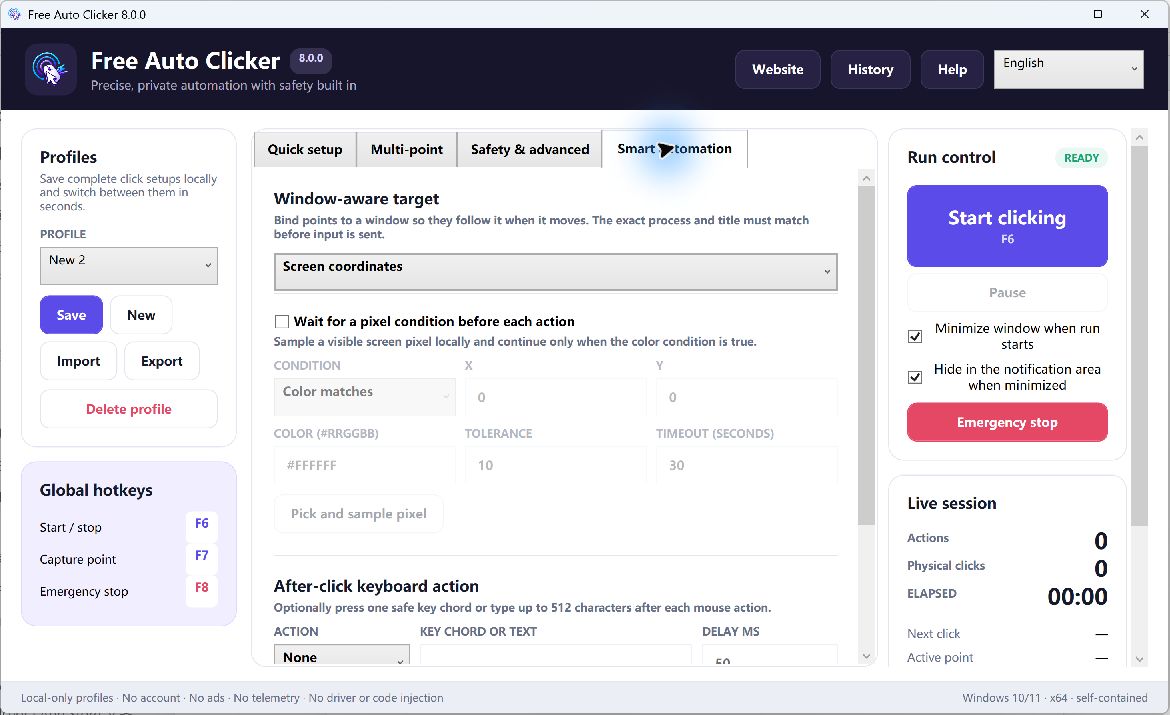
Free Auto Clicker can run an optional after-click action: a supported key chord or a short text string, with a configurable delay. This guide explains how to use that feature for supervised, permitted desktop work without sending text to the wrong window.
Table of Contents
Why focus matters more than coordinates
A coordinate identifies where the mouse clicks. It does not prove which control receives later keyboard input. A dialog can open, a notification can steal focus, or the target window can close between the click and the key action.
For that reason, a click-plus-key workflow should use target-window binding where possible, a deliberate delay after the click, and a short first run. Do not automate passwords, recovery codes, payment details, private messages, or any other sensitive text.
Key chord or text: choose the smallest action
Use a key chord for a defined command
A safe key chord is appropriate when the target application has a documented shortcut and the effect is reversible or harmless in the test context. Examples can include copying a selected test value or moving focus within a demo form. Avoid global shortcuts or commands whose effect changes across applications.
Use short text for a non-sensitive test value
Text input is useful for a test query, a placeholder value, or a repeatable QA string. Keep it short and non-sensitive. Free Auto Clicker limits after-click text to 512 characters, but a technical maximum is not a recommendation to paste long or confidential material.
How to build a click-plus-key workflow
- Open a safe test target. Use a demo document, staging app, or reversible screen state.
- Bind the correct window. Match the intended process and title.
- Capture the click point. Prefer a window-relative coordinate when the app may move.
- Choose the mouse action. Set left, right, or middle button and single, double, or press-and-hold behavior only as required.
- Add an after-click delay. Give the target control time to receive focus or finish opening.
- Add one key chord or short text action. Use the minimum input needed for the task.
- Set finite limits. Start with one repetition and a short maximum runtime.
- Test under supervision. Watch both the click target and the focus indicator. Keep F8 ready.
Example 1: copy a value from a test table
A desktop test app contains a table of generated sample values. The goal is to select the first row and copy its value for manual verification.
- Bind to the test app window.
- Capture the center of the first row as a window-relative point.
- Add a short delay so the row selection is visibly active.
- Use the application’s copy shortcut as the after-click action.
- Run once and paste the result manually into a disposable text editor for verification.
Do not automatically paste into another application. That adds a second focus dependency and makes the result harder to audit.
Example 2: enter a repeatable QA string
A staging form needs the same harmless value in one field during a layout test.
- Use a unique string such as
FAC-QA-2026-08, not real personal data. - Click well inside the intended field.
- Wait long enough for focus and any animation to finish.
- Send the test string once.
- Do not include Enter if it could submit the form.
Use pixel conditions when timing is uncertain
A fixed delay assumes the interface will always be ready after the same amount of time. If a visible state reliably indicates readiness, a pixel-color condition can be safer. For example, wait until an input border or status indicator reaches the expected color before sending the after-click action. Configure a timeout so the workflow stops if the state never appears.
Failure modes to test
A notification steals focus
Run a short test while observing the title bar and caret. If focus can be lost, use stronger target checks or choose a supported application automation interface.
The click opens a dialog slowly
Increase the delay or wait for a visible state. Do not solve intermittent readiness by running the sequence repeatedly.
The keyboard layout differs
Text and punctuation can vary across keyboard layouts and input methods. Validate the exact characters on the target machine.
The target runs as administrator
Windows can block input sent from a lower-integrity process to an elevated app. Do not weaken system security solely to force the automation to work.
Never automate these as text
- Passwords, one-time codes, API keys, or recovery phrases
- Payment or banking information
- Private customer or employee data
- Messages or posts that will be sent without review
- Commands that delete, purchase, approve, or submit irreversibly
Frequently asked questions
Can an auto clicker press keyboard keys?
Free Auto Clicker can run a configured key chord or short text action after a click. It is not a general-purpose scripting language or full keyboard macro recorder.
How long can the after-click text be?
The current configuration supports text up to 512 characters. Use short, non-sensitive test values and verify focus first.
How do I prevent text from going to the wrong app?
Bind the target window, use window-relative points, allow time for focus, test once, and stop if any other application becomes active. For higher-risk workflows, use a supported API or test framework instead.
Can I add a delay before the keyboard action?
Yes. The after-click action has its own delay so the clicked control has time to update or receive focus.
Read the guide to pixel-color conditions and the guide to window-relative clicking.