
A saved auto clicker profile is more useful than a screenshot of settings. It preserves the actual click mode, intervals, points, limits, window rules, and optional conditions needed to repeat a task. Free Auto Clicker can save local profiles and export or import portable .fac files.
This guide shows how to turn a working sequence into a reusable asset without assuming that every PC, display, or application window is identical.
Table of Contents
Local profile versus exported .fac file
A local profile is convenient for setups you use regularly on one computer. An exported .fac file is designed for backup or transfer. It can be stored with test notes, shared with a teammate, or imported after reinstalling the app.
An exported file is configuration, not proof that a sequence is safe on another machine. Display scaling, window size, app version, localization, and permissions may change the result. Always validate an imported profile before a full run.
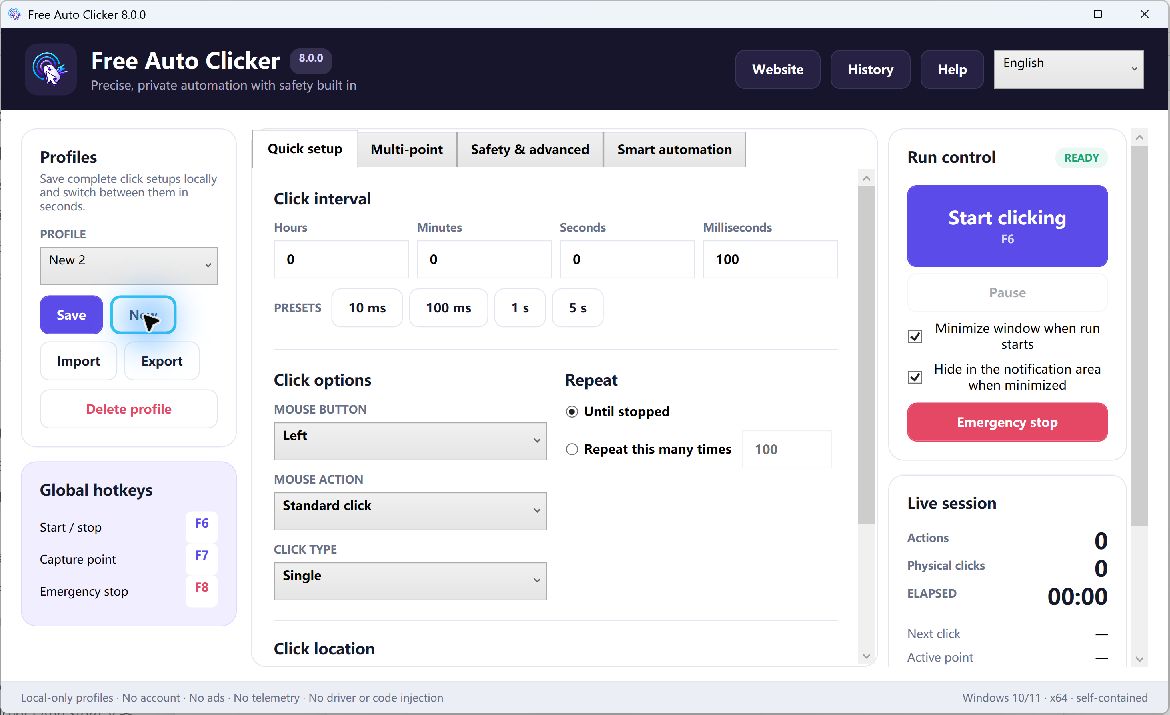
What a useful profile should contain
- A descriptive name and purpose.
- The click mode: follow mouse, fixed coordinate, or ordered multi-point.
- Mouse button and click action.
- Base interval, per-point delays, and repeat rules.
- Enabled points in the correct order.
- Target-window binding and coordinate reference, when used.
- Pixel-color conditions and timeouts, when used.
- Safety settings such as start delay, maximum runtime, and maximum click count.
- Hotkeys and post-click keyboard/text actions, when used.
Use a naming convention that explains the risk
A name such as “Profile 3” becomes useless a month later. Prefer a structured name:
[App]-[Workflow]-[Environment]-[Revision]
For example: DemoApp-RefreshCheck-Test-v2. Add “TEST” or “PRODUCTION” explicitly when the same application has separate environments. Do not store credentials or sensitive text in profile names.
How to save a local profile
- Build the sequence and run it once with a low repeat count.
- Verify the active click mode, mouse button, action, and interval.
- Review every multi-point entry, including disabled points.
- Confirm target-window and pixel conditions.
- Set a maximum runtime or maximum click count.
- Save the configuration under a descriptive profile name.
- Stop and reload the profile to confirm that the expected settings return.
How to export a .fac profile
- Load the exact profile you intend to export.
- Check that no test-only or destructive point is still enabled.
- Choose the export action and save the
.facfile in a controlled folder. - Use the same descriptive base name as the local profile.
- Store a short README beside the file explaining the target app, expected window, screen assumptions, and test date.
For team use, treat the profile and its documentation as one unit. A bare configuration file does not explain why its delay is 900 ms or what a green pixel means.
How to import safely
- Import only a file you trust. Review its origin and intended task.
- Inspect before running. Check every click point, repeat count, hotkey, after-click action, and safety limit.
- Open the intended target app in a test state. Match its window size, display scaling, and language where possible.
- Test selected points. Use individual point testing instead of launching the whole sequence immediately.
- Run one cycle. Observe the result and stop on any unexpected focus or layout change.
- Save a local copy with a new revision. Preserve the imported original for comparison.
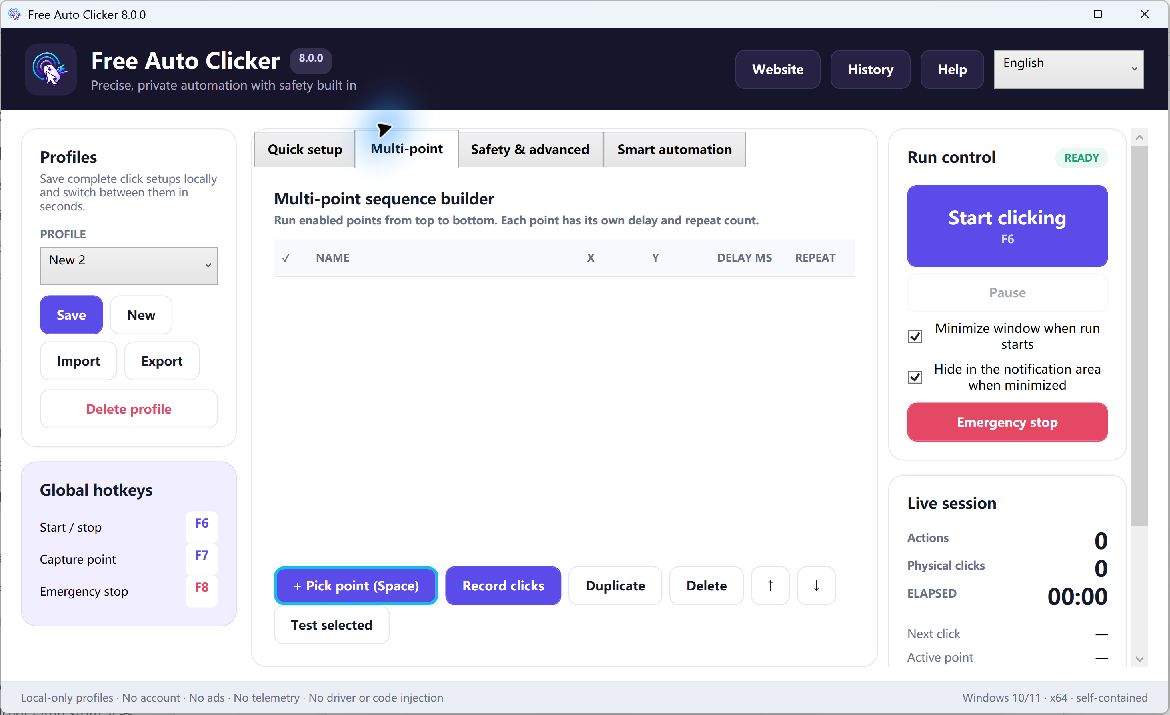
Why profiles can fail on another PC
Display scaling and resolution
An absolute screen point may move relative to the visible interface when scaling or resolution changes. Window-relative points reduce one source of drift, but the target app’s internal layout can still change.
Application version or language
A renamed tab, relocated button, or translated label can invalidate the expected path. Record the target application version and language in the profile notes.
Window title and process differences
Exact target-window matching may fail if the title contains a changing document name. That failure can be protective. Review the match rule rather than weakening it without understanding the consequence.
Permission level
Windows restricts synthetic input across integrity levels. A normal process may not be able to send input to an elevated administrator application. Do not automatically elevate the clicker to bypass that boundary.
Profile maintenance checklist
- Keep a revision number and last-tested date.
- Retest after app, Windows, monitor, or scaling changes.
- Remove obsolete profiles rather than leaving ambiguous duplicates.
- Keep finite safety limits in shared profiles.
- Document the expected starting screen and final result.
- Never include passwords or other secrets in after-click text.
A profile is not a permission slip
Importing a configuration does not make its use appropriate. Confirm that automation is allowed in the target application and that the sequence cannot submit, purchase, delete, or disclose information unexpectedly.
Frequently asked questions
What is a .fac file?
It is the portable profile format used to export and import Free Auto Clicker settings.
Does a profile include multi-point settings?
A complete profile is intended to preserve the configured workflow, including ordered points and relevant automation settings. Review the imported result before use.
Can I share a profile with another computer?
Yes, but the other computer may have different scaling, window layout, app version, or permissions. Test every point and run one limited cycle first.
Should I edit an imported file directly?
Import it, review the settings in the application, and save a new local revision. Preserve the original file so changes remain traceable.
Learn how to record a multi-point sequence and how to configure safety limits and emergency hotkeys.