
A traditional auto clicker stores desktop X/Y coordinates. That works until the target window moves, opens on another monitor, or returns at a different position after a restart. Window-relative clicking stores the point inside a selected window so its desktop position can change without moving the intended target.
This makes a permitted desktop workflow more repeatable, but it does not create hidden or background input. The target should remain visible and in the expected foreground state.
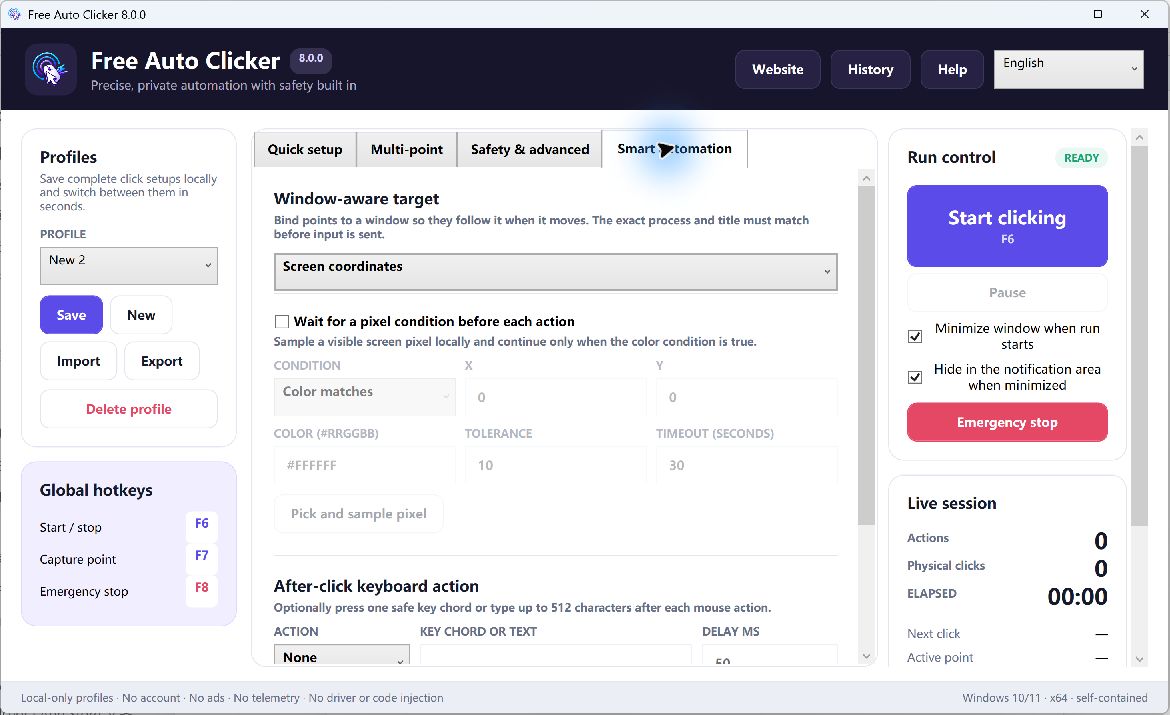
Table of Contents
Screen coordinates versus window-relative coordinates
A screen point such as X=900, Y=500 always refers to that desktop location. If an application moves 200 pixels left, its button moves while the stored point does not. A window-relative point describes the offset from the selected window, so the point moves with the window.
Relative coordinates solve position drift at the window level. They do not identify a control by name, understand the page, or adapt to an internal UI redesign.
How to bind a workflow to the correct window
- Open the application you are authorized to automate.
- Open the target-window controls in Free Auto Clicker.
- Select the exact process and expected window title.
- Confirm the target details before capturing points.
- Capture a coordinate inside the window.
- Test the selected point with one harmless action.
Exact matching is protective. If the expected window is missing or renamed, stop and review the setup instead of falling back to an old desktop coordinate.
Add a window-relative point
Choose a stable location well inside the target control. Avoid borders, resize handles, scrollbars, and areas that change when the pointer hovers. For multi-point sequences, capture every point against the same intended window and name each row by purpose.
After moving the target window, test the selected point again. That simple check demonstrates whether the stored coordinate is truly relative and whether the application layout remained unchanged.
Combine window binding with a multi-point sequence
A window-relative sequence can open a tab, choose a harmless option, wait for a test status, and close the dialog. Each point can have its own delay, repeat count, mouse action, and enabled state. Record the path for speed, then edit the captured list before running it.
Use the shortest sequence that proves the workflow. More points create more opportunities for focus loss and layout drift.
Use a pixel condition when position is not enough
A control can occupy the expected point but still be disabled or loading. A pixel-color condition can wait for a visible ready state. Use a stable pixel, configure tolerance for small rendering differences, and set a timeout so the task stops if the expected state never appears.
Test the failure cases
The window moves
Move the target to another desktop position and test one selected point. The point should remain aligned inside the same window.
The window resizes
Relative offsets do not automatically follow responsive layout changes. Retest every point after resizing.
Display scaling changes
Windows scaling can change rendered positions and hit areas. Revalidate the workflow after scaling, resolution, or monitor changes.
The title changes
An exact target rule may no longer match. Review whether the changing title identifies a different document or state before editing the rule.
The target runs as administrator
Windows limits synthetic input across integrity levels. A normal app may not be able to send input to an elevated window. Prefer a supported automation interface instead of weakening this security boundary.
What window-aware automation does not do
Window binding does not inject code into another process, install a driver, click a hidden or minimized app, or grant permission to automate a third-party service. It verifies the intended window and changes the coordinate reference for visible foreground automation.
Reliability checklist
- Use a consistent target-app version and window size.
- Test after display, scaling, language, or theme changes.
- Use a start delay to bring the target to the front.
- Set a maximum runtime, maximum click count, or finite repeat.
- Keep F8 available as the emergency stop.
- Save separate profiles for different layouts.
Frequently asked questions
Does window-relative clicking work when the app is minimized?
No. It keeps coordinates aligned to a visible target window; it is not background input injection.
Will it survive an application redesign?
Not automatically. If controls move inside the window, retest and update the points.
Why use exact target matching?
It helps prevent a sequence from continuing against a different process or unexpected window.
Can I combine relative points with pixel conditions?
Yes. Window binding establishes the target and coordinate reference; a pixel condition checks a simple visible state before the action.
Learn how pixel-color conditions work and what “background auto clicker” really means on Windows.