
People searching for a background auto clicker for Windows often want one of three very different things: keep clicking while they work in another app, keep a click sequence attached to a window after that window moves, or prevent accidental clicks when the wrong window is active. Those jobs sound similar, but Windows handles them differently.
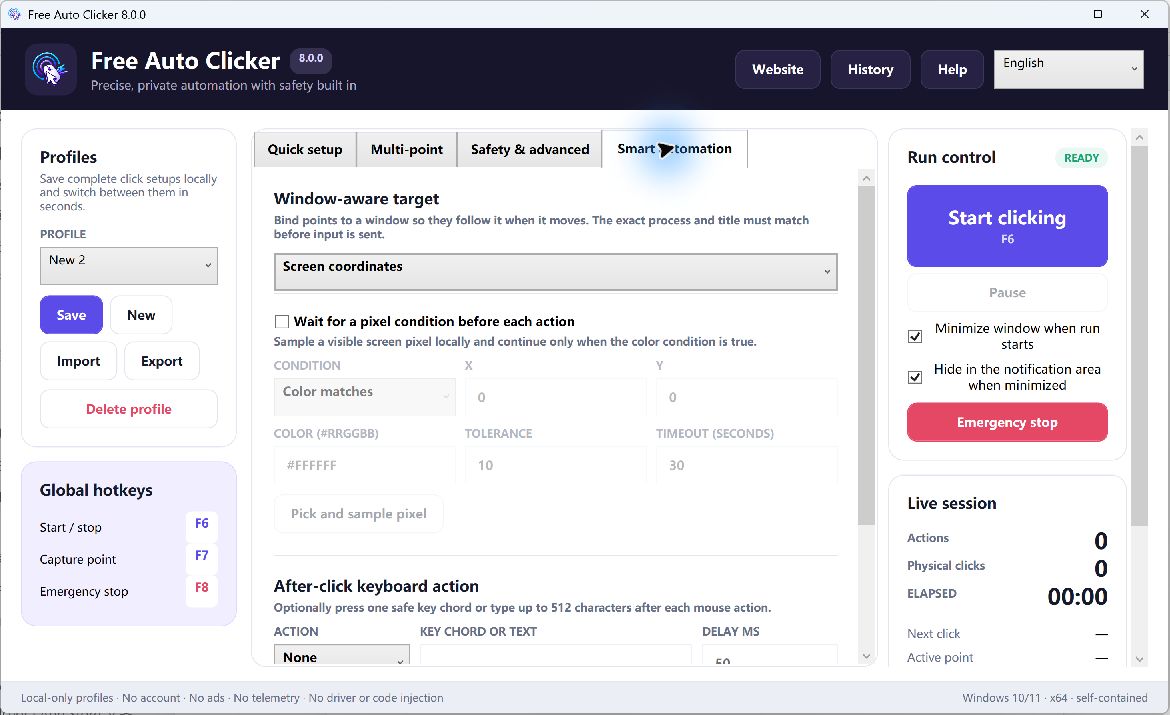
This guide separates the three meanings, explains the operating-system limits, and shows a safer way to automate a known desktop window. The short answer is important: Free Auto Clicker does not inject mouse input into an unfocused or hidden application. It sends ordinary foreground input. Its target-window tools are designed to verify the intended window and keep coordinates aligned with that window—not to bypass normal Windows input rules.
Table of Contents
What does “background auto clicker” mean?
1. Clicking an unfocused or minimized app
This is the strictest definition. The user wants an application to receive clicks while another app remains active, or while the target is minimized. That requires application-specific messaging, accessibility support, a documented automation API, or input injection. Compatibility varies widely, and software may intentionally reject such input.
Free Auto Clicker is not built for this use case. It does not claim to click inside minimized windows or secretly send input to a process that is not in the foreground.
2. Keeping click points attached to a moving window
This is often what users actually need. A button is at position 320, 240 inside an app, but the app itself may move around the desktop. Screen coordinates would point to the wrong place after the move. Window-relative coordinates solve that problem by storing the point relative to the target window.
The automation still runs against a visible, appropriate foreground window. The benefit is repeatability: if the window moves, the click point moves with it.
3. Continuing a task after the clicker UI is hidden
Some users simply want the clicker window out of the way. Minimizing the controller to the system tray is different from background-clicking another app. The controller can stay unobtrusive while ordinary clicks are sent to the active desktop target.
Why Windows places limits on synthetic input
Windows provides the SendInput API for synthesizing keyboard and mouse events. Microsoft documents that it is subject to User Interface Privilege Isolation (UIPI): an application can inject input only into applications running at an equal or lower integrity level. In practical terms, a normal desktop app may fail to control an elevated administrator window.
That limitation is a security boundary, not a bug in an auto clicker. You should not weaken Windows security or run an automation tool as administrator merely to force clicks into a protected application. If a business application exposes a supported automation API, that is usually the better path.
Microsoft documentation: SendInput
A safer foreground workflow
- Open the target app and place it where you want it. Keep it visible while configuring the workflow.
- Choose the exact target window. Match the expected process and title so the clicker can stop or refuse to act when the wrong window is active.
- Use window-relative coordinates. Capture each point inside the target window instead of relying on absolute screen positions.
- Add a pixel-color condition for stateful buttons. A color check can wait for a visual state before clicking instead of relying only on a fixed delay.
- Set hard limits. Use a maximum runtime, a maximum click count, or a finite repeat count.
- Test with one or two repetitions. Watch the complete sequence before increasing the count.
- Keep the emergency stop available. F8 remains the fixed emergency-stop key even when the normal start/stop hotkey is customized.
Example: testing a desktop dialog after it moves
Imagine a Windows test utility with a “Run” button and a status indicator. The window is not always opened at the same desktop location.
- Bind the automation to the utility’s exact process and expected title.
- Capture the Run button as a window-relative point.
- Sample the status indicator’s expected ready color.
- Wait for that color before clicking.
- Limit the sequence to five repetitions and 60 seconds.
If the target window is missing, renamed, or not in the expected state, the workflow should stop instead of clicking whatever happens to occupy the same screen coordinates.
When a background clicker is the wrong tool
Do not use ordinary mouse automation when a task has a stable API, a command-line interface, or a supported test framework. Those interfaces can verify results directly and generally continue to work when a UI layout changes. An auto clicker is most useful for small, visible, supervised desktop workflows where the click itself is the behavior being tested.
Also avoid automating services, games, or websites that prohibit automated interaction. A tool’s technical ability does not override a product’s rules, workplace policy, or applicable law.
Safety checklist
- The intended target window is visible and active.
- Window binding is enabled when a fixed app is required.
- Coordinates are relative to the target window.
- A finite click, repeat, or runtime limit is configured.
- F8 has been tested as the emergency stop.
- No password, payment, destructive delete, or irreversible action is in the sequence.
Frequently asked questions
Can Free Auto Clicker click a minimized window?
No. It sends ordinary foreground input and does not inject clicks into a minimized or unfocused app.
What is the difference between window binding and background clicking?
Window binding verifies the intended app and can make coordinates relative to its window. Background clicking tries to deliver input while another app has focus. They are not the same feature.
Why does clicking fail in an administrator window?
Windows applies integrity-level restrictions to synthetic input. Microsoft documents that SendInput is limited by UIPI. Prefer a supported automation interface instead of weakening that boundary.
Can the clicker stay minimized while a sequence runs?
The controller can minimize to the tray while a foreground sequence runs. The target application still needs to be in the correct visible state.
Next, learn how window-relative clicking works and how pixel-color conditions can wait for the right screen state.