
A right-click auto clicker sends repeated right mouse-button actions at recorded screen coordinates. Free Auto Clicker v8.0.0 lets you choose left or right click before starting a sequence on 64-bit Windows 11 or Windows 10.
Download Free Auto Clicker v8.0.0
Table of Contents
Left click versus right click
| Mouse button | Typical Windows behavior |
|---|---|
| Left | Selects or activates a standard control |
| Right | Opens a context menu or sends a right-button action |
The target program decides what each mouse button does. Verify the behavior manually before automating it, and make sure the right-button action is permitted in the application you are using.
How to automate right mouse clicks
- Launch Free Auto Clicker and place the target window in its final position.
- Move the pointer to the exact location that should receive the right click.
- Press F7 to record the X-Y coordinate.
- Choose Right in the mouse-button settings.
- Set a click interval and an optional click or time limit.
- Start the sequence and watch the first test run.
- Press F8 whenever you need to stop.
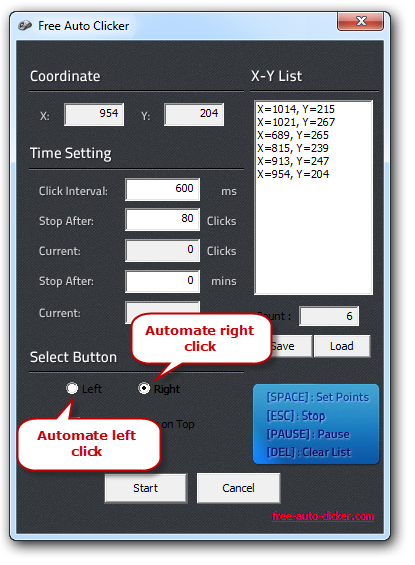
Right click at multiple locations
You can record more than one coordinate with F7. Free Auto Clicker stores the positions in the X-Y List and follows them in order. This is useful when a desktop workflow requires right-button actions at several fixed locations.
All points in the current sequence use the selected mouse-button setting. Review the list and button choice before starting. For detailed coordinate-list instructions, see the multi-point auto clicker guide.
Choose a reliable right-click interval
A right click may open a context menu that needs time to appear. If the next click arrives before the target is ready, increase the interval in milliseconds. Start slowly, test the sequence, and reduce the delay only after every action is registered consistently.
Troubleshooting right-click automation
The program sends a left click
Stop the sequence with F8, select the Right option, and test again. Confirm the setting before every new task or loaded FAC file.
The context menu opens in the wrong place
Fixed coordinates do not follow a window after it moves. Return the target to its intended position, clear the old X-Y List with Delete, and record the point again.
The next action occurs too quickly
Increase the Click Interval value. Read the interval and stop-condition guide for examples.
Safety and responsible use
Free Auto Clicker v8.0.0 is digitally signed, contains no advertising or bundled offers, and does not collect user data. Review the security facts before installing. Use right-click automation only where it is allowed and never to bypass security controls or confirmation steps.