
This step-by-step guide explains how to install and use Free Auto Clicker v8.0.0 on Windows 11 or Windows 10, record one or multiple click points, set the click interval, choose the mouse button, save a reusable script, and control clicking with keyboard hotkeys.
Download Free Auto Clicker v8.0.0
Table of Contents
Before you begin
- Use Windows 11 or Windows 10 on a 64-bit PC.
- Download the approximately 2.82 MB installer from the official website.
- Allow administrator permission when Windows asks during installation.
- Decide where the clicks should occur and how long the interval should be.
The official v8.0.0 release is digitally signed, has no advertising or bundled offers, and does not collect user data. See the security and privacy facts before installing.
Step 1: Download and install Free Auto Clicker
- Open the official download page.
- Select Download Free Auto Clicker v8.0.0 and save the installer.
- Open the downloaded file and approve the Windows administrator prompt.
- Complete the setup, then launch Free Auto Clicker.
Step 2: Record a mouse click point
Move the mouse pointer to the exact place where you want the automatic click to occur. Press the F7. Free Auto Clicker captures the X and Y coordinates and adds that position to the X-Y List.

Coordinates describe a fixed position on the screen. If you later move or resize the target window, record the point again so the click lands on the intended control.
Step 3: Add multiple click points and save the sequence
Repeat the same process for every position you want to click: move the pointer and press the F7. The points are stored in order in the X-Y List. When you start the task, Free Auto Clicker follows that ordered list.
Use Save to store the click list as an FAC file. The next time you need the same workflow, use Load to open the FAC file instead of recording every point again. Press Delete when you need to clear the current list.
Step 4: Set the click interval and stop conditions
In the Time Setting section, enter the delay between clicks in the Click Interval (ms) field. A larger millisecond value produces a longer pause between clicks. Start with a moderate interval and reduce it only if the target program responds reliably.
You can also stop the automation after a chosen number of clicks or after a chosen number of minutes. These limits are useful when a repetitive task has a clear end.
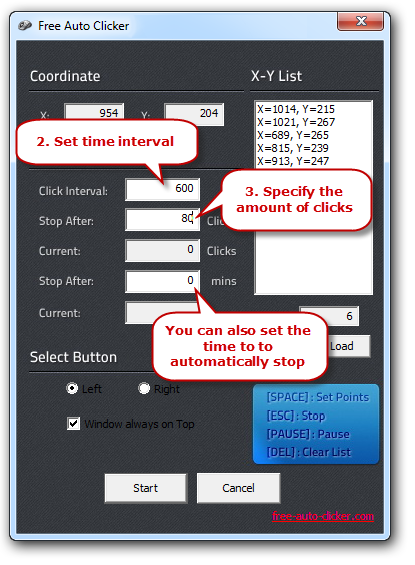
For additional detail, read how to set the time interval and schedule.
Step 5: Select left or right click
Choose Left when you want the program to perform a standard left-button action. Choose Right when the task requires a context-menu click. Check the selection before starting so the program does not send the wrong button action.
If you do not want Free Auto Clicker to remain above other windows, clear the Window always on Top option. When your coordinates, interval, and mouse button are ready, select Start.

Step 6: Control clicking with hotkeys
| Key | Action |
|---|---|
| F7 | Record the current pointer position as an X-Y click point |
| F6 | Temporarily pause automated clicking |
| F8 | Stop automated clicking |
| Delete | Delete the selected point |
See the separate Free Auto Clicker hotkey guide for a quick reference.
Troubleshooting common problems
The click lands in the wrong place
Return the target window to the position and size you intend to use, then record its X-Y coordinates again. Fixed coordinates do not automatically follow a button after that button moves.
The target program misses some clicks
Increase the click interval so the target has more time to respond. Extremely short intervals are not appropriate for every program.
The installer shows a Windows permission prompt
This is expected because the installed version requires administrator permission. Verify that the installer came from this official website and check its digital signature before approving it.
Clicking does not affect an elevated program
Windows can restrict interaction between applications running at different permission levels. Close the automation task, verify the target program, and run Free Auto Clicker with the appropriate administrator approval only when needed.
Use Free Auto Clicker responsibly
Use automation only where it is permitted. Check the rules of any website, game, or third-party service before automating it. Avoid tasks involving online voting, unattended financial transactions, security controls, or unfair competitive advantages.