How to Automate Repetitive Mouse Clicks on Windows
You can automate repetitive mouse clicks when a Windows desktop task repeatedly uses the same fixed controls. Free Auto Clicker v8.1.0 records one or multiple X-Y positions, applies a chosen interval, and stops when you press F8 or when a configured limit is reached.
Download for WindowsWindows 10/11 · x64 · Free · v8.1.0
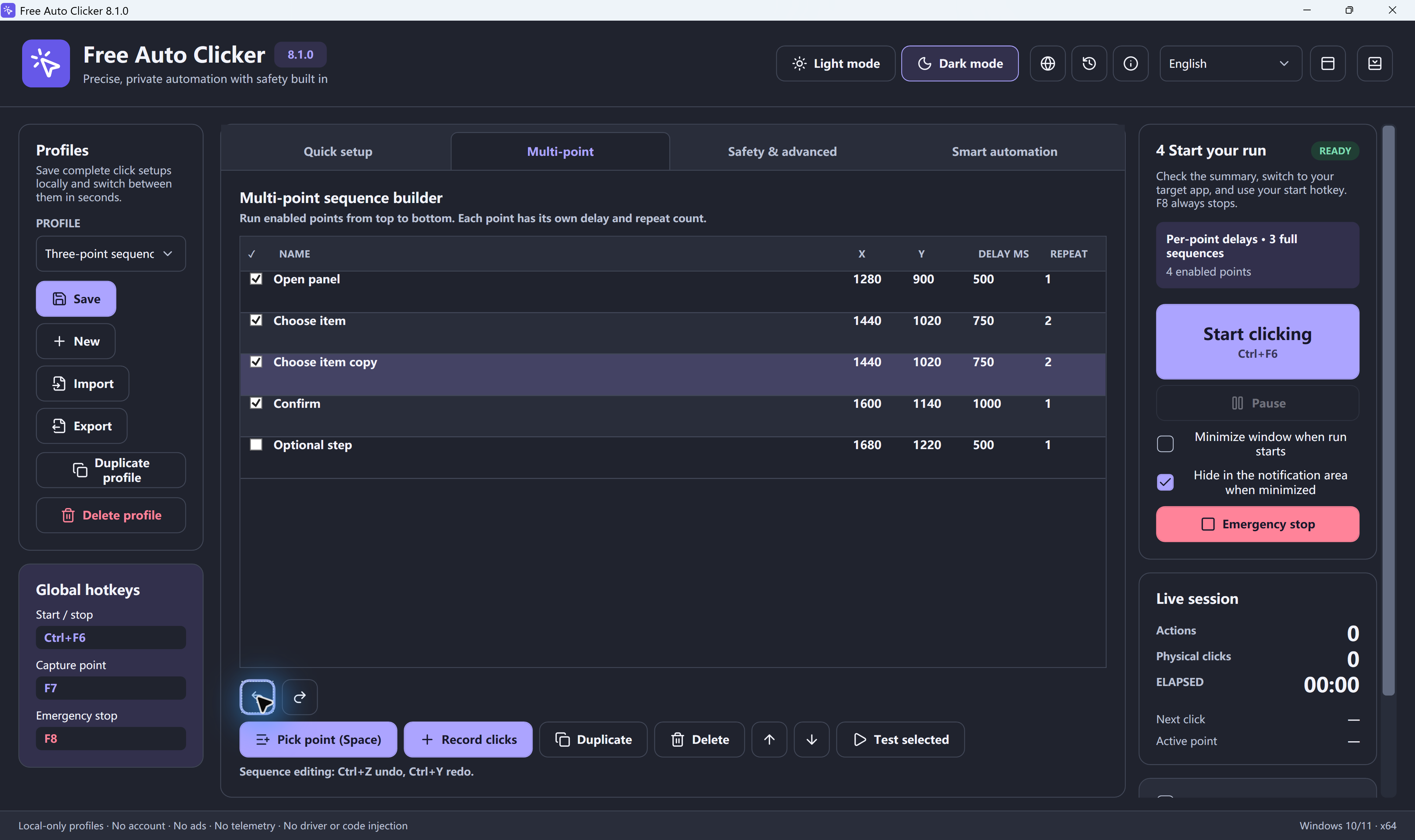
Table of Contents
Tasks suited to mouse click automation
- Repeating steps in desktop software that lacks a batch-processing feature.
- Running a consistent click sequence during user-interface testing.
- Operating several fixed controls at known screen coordinates.
- Reducing routine mouse input in a personal workflow.
- Repeating a limited task for a defined number of clicks or minutes.
Automation is most reliable when the target window, controls, and screen layout remain stable. It is not appropriate for changing interfaces, important confirmation steps, or tasks that require human judgment.
Plan the sequence before recording
- Write down the controls that must be clicked and the required order.
- Place the target window in its final position and size.
- Perform the task manually once to confirm every step.
- Estimate how much time the target needs between actions.
- Decide on a click limit or time limit so the task cannot run indefinitely.
Record and test the automated clicks
Move the pointer to the first target and press F7. Repeat for every additional location. The coordinates appear in the X-Y List in the same order they were recorded. Choose left or right click, enter the interval, and start with a short test run.
If the task uses several controls, follow the multi-point auto clicker guide. For a single coordinate, one recorded point is sufficient.
Choose a reliable interval
A faster interval is not always better. Desktop software may need time to display a dialog, refresh a list, or process the previous action. Begin with a moderate delay and shorten it only after each click is registered reliably. Configure an automatic stop after a number of clicks or minutes whenever the task has a clear end.
Save reusable click sequences
Save the current coordinate list as an FAC file when you expect to repeat the same workflow. Load the FAC file later instead of recording every position again. Test the loaded sequence because window placement, display scaling, or the target application’s layout may have changed.
Safety checklist before starting
- Keep F8 available as the stop key.
- Watch the first complete run.
- Use a defined stop condition.
- Do not automate security or financial confirmation steps.
- Follow the rules of websites, games, and third-party applications.
- Record the coordinates again after any window or display change.
Troubleshooting
If clicks land incorrectly, stop the task, return the window to its intended position, clear the coordinate list, and record it again. If clicks are ignored, increase the interval. If the wrong button action occurs, verify whether Left or Right is selected.
See the complete Free Auto Clicker guide for installation, screenshots, hotkeys, and additional troubleshooting.
Ready to automate the clicks on your PC?
Free Auto Clicker repeats clicks at the interval you choose, in any Windows app.
Download for WindowsWindows 10/11 · x64 · Free · v8.1.0