Web Auto Clicker: Auto Click on a Website, No Download
A free bookmarklet for your browser. Start it on the page you want to automate, pick a button or spot, set the interval and press Start. It repeats clicks on that page only, and Esc stops it.
Add the Web Auto ClickerChrome · Edge · Firefox · Safari · Chromebook · Free · No extension
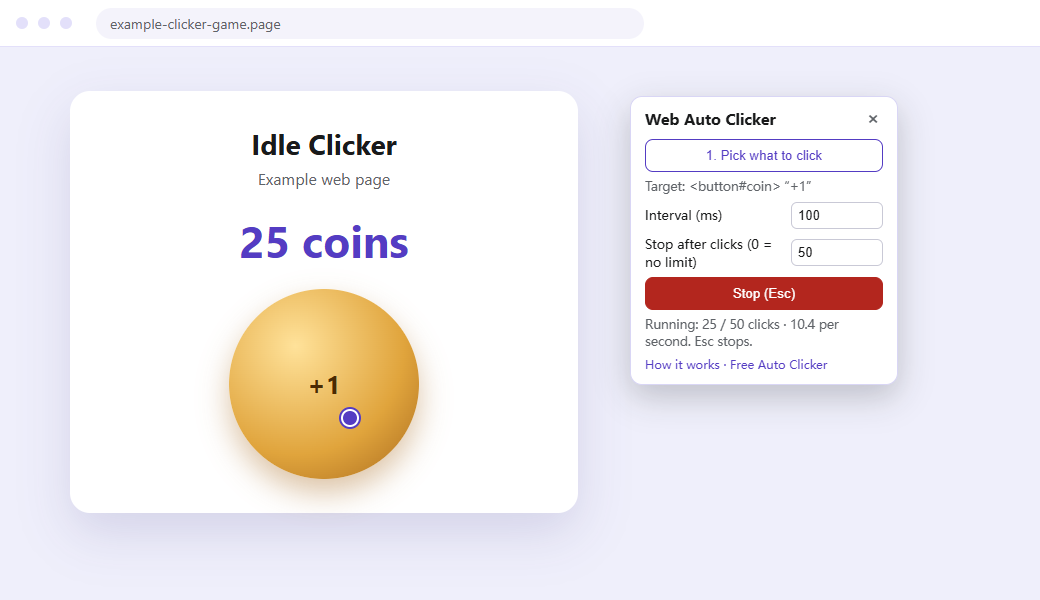
Short answer: a normal web page cannot click other tabs, but a bookmarklet can run inside the page you open it on. The Web Auto Clicker uses that: you start it on the page you want to automate, pick what to click, and it repeats simulated clicks there at your interval. Nothing is installed and nothing is sent anywhere.
- No download
- No extension
- Works on Chromebook
- Free
1. Add it to your browser
Drag this button to your bookmarks bar:
Can’t drag it, for example on a touch screen? Copy the code, create a new bookmark named “Web Auto Clicker”, and paste the code into its URL field.
Show the bookmarklet code
Readable source: web-auto-clicker.js
2. Try it on this page
0 clicks
Select Run it here, click the round button to pick it, set 100 ms and a limit of 50, then press Start. Press Esc to stop early.
3. Use it on the page you want to automate
- Open the page, for example a browser clicker game or a page with a button you press again and again.
- Select the Web Auto Clicker bookmark. A small panel opens in the top-right corner. You can drag it by its title.
- Click the button or spot to repeat. The panel shows what you picked. That first click only chooses the target; it is not passed to the page.
- Set the interval and a limit. The interval is in milliseconds; 100 ms is 10 clicks per second. A limit of 0 means it runs until you stop it.
- Press Start. Press Esc or select Stop to end the run. Close the panel with ×, or reload the page, to remove it.
What it can and cannot click
It works on buttons, links, images and game areas inside the page where you start it, including many HTML5 and canvas clicker or idle games, in Chrome, Edge, Firefox and Safari on Windows, Mac, Linux and ChromeOS.
It does not work on:
- other tabs, the browser toolbar or desktop apps;
- installed games such as Roblox and Minecraft (use the Windows app on a PC);
- content inside an embedded frame from another site; open the frame’s own page and start the bookmarklet there;
- pages that accept only real hardware clicks and ignore simulated browser events.
Browsers slow down timers in tabs you are not looking at, so keep the tab visible while it runs.
Interval and speed
| Interval | Clicks per second | Good for |
|---|---|---|
| 1,000 ms | 1 | Slow, easy-to-watch repeats |
| 500 ms | 2 | Buttons that need time to respond |
| 100 ms | 10 | Most clicker and idle games |
| 50 ms | 20 | Fast games that keep up |
| 10 ms | 100 | The fastest setting |
A page decides how many clicks it accepts. If extra clicks are ignored, a slower interval is just as effective. To convert a CPS target into milliseconds, use the click interval calculator.
Privacy and safety
- No download, no extension and no account.
- The code runs only on the page where you start it. It makes no network requests and stores nothing, and it is gone when you close the panel or reload the page.
- You can read every line of the source code.
- Use it fairly: follow each site’s and game’s rules, and do not use automation in tests, exams, votes or anywhere it is not allowed.
Web Auto Clicker vs other options
| Option | Install needed | Where it clicks |
|---|---|---|
| Web Auto Clicker (this bookmarklet) | No, it is a bookmark | Elements on the page where you start it |
| Online auto clicker demo | No | Three practice targets on its own page |
| Chrome Web Store extensions | Yes, often blocked at school | Web pages, depending on the extension |
| Free Auto Clicker for Windows | Yes, Windows 11/10 PC | Any permitted visible Windows app, including games |
Need clicks in a game or Windows app?
Free Auto Clicker 8.1.0 for Windows clicks in the visible foreground window of any permitted app, with F6 to start and stop, F8 for an emergency stop, multi-point sequences and run limits. See the setups for Roblox and Minecraft.
Download Free Auto Clicker for WindowsFrequently asked questions
Is the Web Auto Clicker free?
Yes. It is a free bookmarklet with no account, no extension and nothing to download.
Does it work on a school Chromebook?
It works wherever bookmarks and bookmarklets are allowed, including Chrome on ChromeOS. Some schools block bookmarklets. Follow your school's rules and never use automation in tests or exams.
Can it click in Roblox or Minecraft?
No. Roblox and Minecraft are installed apps, not web pages. On a Windows PC, use Free Auto Clicker, which clicks in the visible game window.
Why does a game or page ignore the clicks?
Some pages accept only clicks from a real mouse and ignore simulated browser events. Others place the game inside an embedded frame from another site. Open the game's own page and start the bookmarklet there, or use the Windows app on a PC.
How fast can it click?
The shortest interval is 10 ms, which is 100 clicks per second. The page decides how many clicks it accepts, so a slower interval often works just as well.
Does it keep clicking in a background tab?
Browsers slow down timers in tabs you are not looking at, often to about one click per second or less. Keep the tab visible to get the interval you set.
Is it safe to use?
The code runs only on the page where you start it. It makes no network requests and stores nothing. You can read the full source code on this site.
How do I stop it?
Press Esc, select Stop or close the panel. It also stops when it reaches your click limit or when the target disappears from the page.
Need clicks outside the browser?
Free Auto Clicker for Windows repeats clicks in games and desktop apps, with F6 to start and F8 to stop.
Download for WindowsWindows 10/11 · x64 · Free · v8.1.0