Auto Clicker Not Working on Windows 11 or 10? 10 Fixes
If your auto clicker is not clicking, first check whether it can send five slow clicks to a simple test pad. The result helps you separate a setup problem from a target-window problem. Then use the matching fix below for missed clicks, incorrect coordinates, unresponsive hotkeys or a run that stops early.
Download for WindowsWindows 10/11 · x64 · Free · v8.1.0
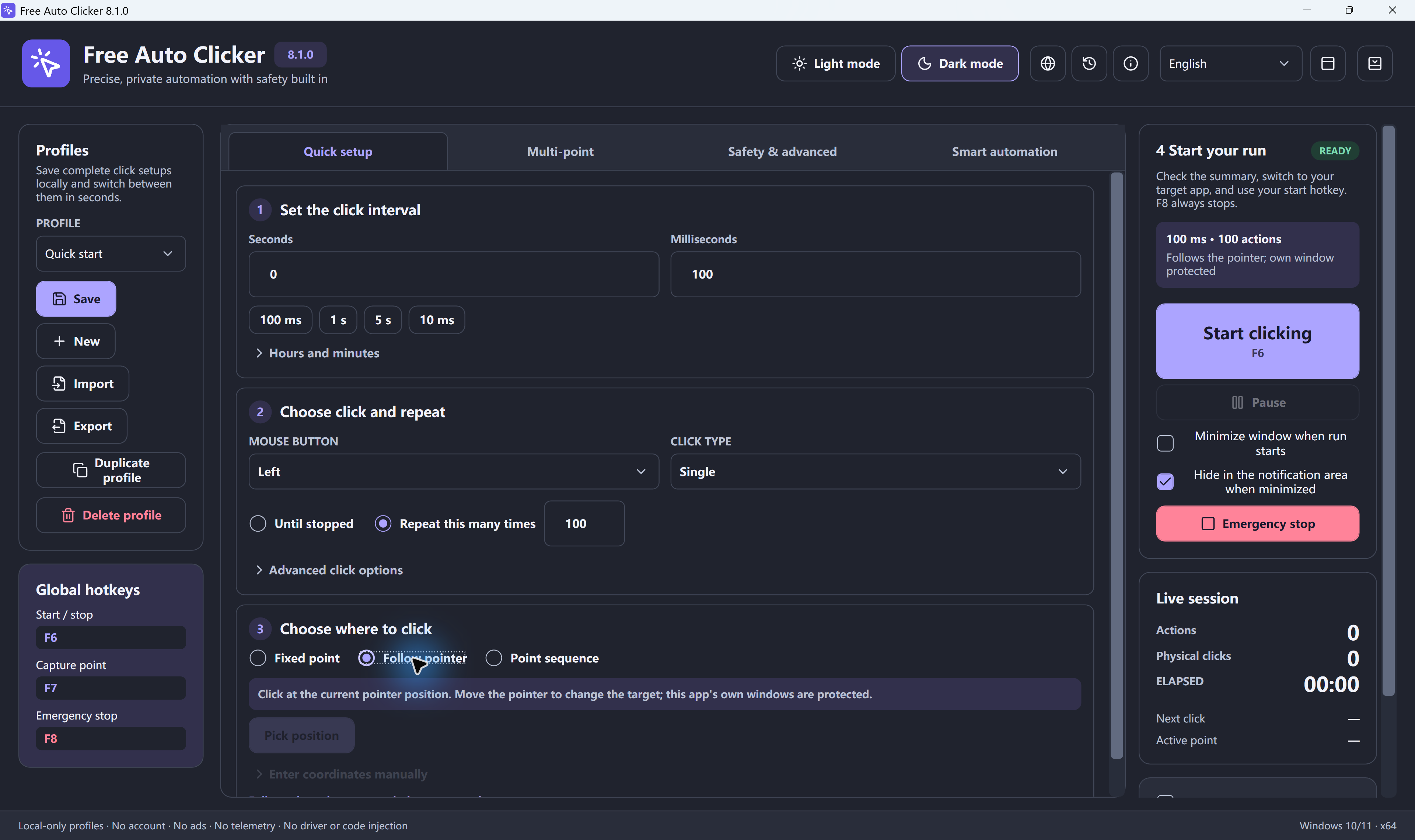
Quick check: use Fixed point, Left, Single, a 1-second interval and 5 repeats. Keep the target visible. By default, F6 starts/stops, F7 opens the coordinate picker and F8 is the emergency stop. In the picker, move to the target and press Space to confirm.
Run the five-click test · Choose your symptom · Fix F6 not responding
This guide applies to Free Auto Clicker 8.1.0, a 64-bit Windows utility. Before troubleshooting, close any task that could submit a form, buy an item, delete data, or affect another account. Test with a harmless window and a slow interval first.
Table of Contents
Quick test: find out whether the clicker or the target is the problem
- Open the mouse-button test in a normal browser window. Click its large pad once by hand to confirm the Left counter responds, then select Reset.
- In Free Auto Clicker, open Quick setup. Set Seconds = 1, Milliseconds = 0, Mouse button = Left, Click type = Single and Repeat this many times = 5.
- Choose Fixed point, select Pick position, move to the middle of the test pad and press Space. Esc cancels picking. This avoids changing an existing multi-point sequence.
- Review Safety & advanced for a start delay or a stop limit that would end the test before five clicks. Keep a short safety limit. Review the current Start/stop key in Global hotkeys.
- Return to the browser without moving or resizing its window. Keep the pad visible, press the displayed Start/stop key (default F6) and leave the pointer alone until the short run ends. Use F8 if a click lands elsewhere.
Expected result: the pad's Left counter increases from 0 to 5. The test counts real mouse-button input on its own pad; the separate online auto-clicker demo animates its own targets and does not test desktop input.
If all five clicks register, repeat the same slow, bounded setup in the original target. If the pad receives no clicks, use the symptom checks below. If even your manual click is not counted, first check the mouse or browser with another simple page.
Symptoms and the most likely cause
| What happens | Check first |
|---|---|
| F6 does nothing | Read the current shortcut and any hotkey warning. Check laptop Fn mode. Hotkey checks. |
| The pointer moves, but the target ignores clicks | Try Left + Single at 1 second on the test pad, then compare the target's permissions. Permission checks. |
| Clicks land beside the button | Capture the point after arranging the window and monitors. Coordinate checks. |
| Only later points fail | Check enabled rows, order, Delay ms and Repeat in Multi-point. Sequence checks. |
| The run stops early or waits before clicking | Read the run status; check start delay, repeat/runtime/click limits and the floating bar. Stop-condition checks. |
| It fails only in one game or app | Keep the target visible and check its supported input and automation rules. Target-specific checks. |
1. Record a fresh click point
In Quick setup → Choose where to click, check which mode is selected. Fixed point uses one stored screen position; Follow pointer clicks where the pointer is; Point sequence runs the enabled rows in Multi-point.
For a fixed point, put the target window in its final position, choose Pick position, move to the middle of the intended control and press Space. Check X and Y under Enter coordinates manually. You can replace the position without deleting a multi-point list.
For a detailed explanation, see how to get mouse click coordinates.
2. Keep the target window in a fixed position
Moving, maximizing, resizing or scrolling a window can move its controls away from stored screen coordinates. Arrange the window first, wait for its content to finish loading, then capture the point. Keep the target visible in the foreground while clicking.
Optional window-relative targeting can follow a chosen window's position. It still cannot identify a button that moves inside that window after scrolling or a layout change, and it does not click minimized or hidden windows.
3. Check display scaling and multiple monitors
Windows display scaling, resolution, monitor order, and the choice of primary display can change how screen coordinates map to a control. This is especially noticeable after connecting a laptop to another monitor or moving a window between displays with different scaling settings. Use the monitor configuration that will remain active and record the points again. If possible, keep the target on one monitor for the entire task.
4. Select the correct left or right mouse button
For the basic test, choose Mouse button = Left and Click type = Single. A double click or a hold changes what the target receives. Compare the Actions and Physical clicks counters in Live session when checking a setup that uses another click type.
A right click usually opens a context menu. Allow time for it to appear and capture any next point only after you know where that menu opens. Follow the right-click auto clicker guide for the exact setup.
5. Slow down the click interval
Set Seconds = 1 and Milliseconds = 0 in Quick setup for the first test. A target may need time to draw a menu, load a page or enable its next control. Reduce the interval only after the short run works reliably.
For a point sequence, inspect each row's Delay ms and Repeat in Multi-point. Changing the basic interval should not be treated as a replacement for every row's timing. See how to set the click interval and stopping schedule.
If clicking starts late or stops early
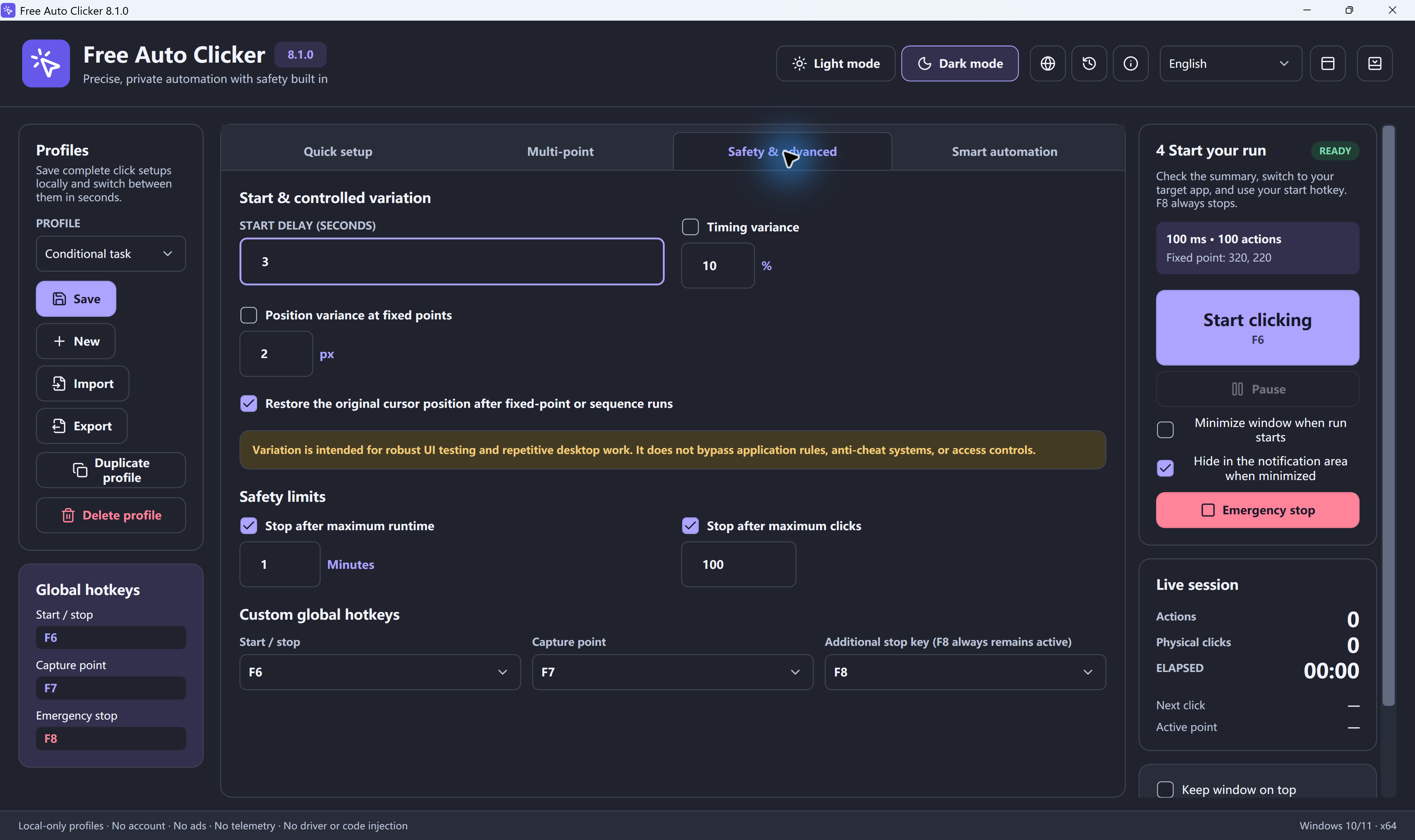
- A delay before the first click: check Start delay in Safety & advanced and any scheduled start configured in Smart automation.
- A repeatable number of clicks: check Repeat this many times and Stop after maximum clicks.
- A repeatable elapsed time: check Stop after maximum runtime.
- A floating-bar warning: move the floating control bar out of the click path, then repeat a short test.
Read the run status before changing limits. Keep a bounded test while diagnosing; a safety stop is useful evidence.
6. Review the order of multiple click points
Open Multi-point and check the enabled checkbox, X/Y coordinates, Delay ms and Repeat for each row. Enabled points run from top to bottom. Use the up/down controls to reorder a row; edit its coordinates instead of recording the whole list again. Delete a row only when that point is no longer needed.
Test one complete sequence with a small repeat limit. If the first point works and the next fails, check what changed in the target before the second click and give that row enough delay.
Use Save in Profiles for the local setup. Export writes a .fac file; Import brings a file back into the app. Select a saved profile from the dropdown when you want to reuse it. The multi-point auto clicker guide explains capturing, ordering and saving sequences.
7. Match the permission level of the target program
Windows can block input sent from a normal process to an elevated administrator process. If the five-click test works in a normal browser but fails in an elevated target, first check whether the target can run normally. Use normal permissions whenever the task allows it.
If an authorized task requires the target to be elevated, the clicker may need the same permission level. This addresses a Windows input boundary; it does not override an application's decision to reject automated input. Return to the same slow, bounded test after changing permissions.
8. Check for hotkey conflicts
The defaults are F6 = Start/stop, F7 = Open the coordinate picker and F8 = Emergency stop. After opening the picker, move to the target and press Space to confirm the point; Esc cancels. Check the Global hotkeys panel for the actual keys in the selected profile. In Safety & advanced → Custom global hotkeys, you can change Start/stop and Capture point or add another stop key; F8 remains the emergency stop.
- Read any hotkey-registration warning in the app. A key already reserved by another program may not be available.
- On a laptop, check whether the function row controls media or brightness. You may need Fn plus the function key, depending on the keyboard's mode.
- Test the displayed key in a normal desktop window. If needed, choose an available shortcut rather than one already used by a keyboard utility or the target application.
- If the setup uses Hold-to-run, keep the Start/stop shortcut held for the intended test; releasing it ends that hold-driven run. For toggle mode, press the shortcut to start and press it again to stop.
Review all shortcuts in the Free Auto Clicker hotkeys guide.
9. Re-record after sleep, Remote Desktop, or a layout change
Locking the PC, changing Remote Desktop resolution, disconnecting a monitor, rotating a display, or waking from sleep can change the active desktop layout. Fixed X-Y points recorded before that change may no longer match. Stop the task before switching sessions. Once the final desktop is visible, verify the window position and record a new one-point test.
10. Reinstall the current official version
If the app cannot open or still fails every simple test after these checks, confirm the requirements: Windows 11 or Windows 10 version 2004 or later, x64, with Microsoft .NET Desktop Runtime 8. Setup offers the runtime download if it is missing.
Before reinstalling, use Profiles → Export for any setup you want to keep. Use the uninstall guide, then download the current release from the official download page. The current 8.1.0 setup is Authenticode-signed; follow the download verification steps to check your file.
When the clicker works everywhere except one app or website
If the five-click test succeeds, focus on the original target: keep its window visible, confirm the correct mouse button, allow enough time for each action and check whether its permission level differs. A game in exclusive full screen may handle input differently; if its settings and rules allow it, compare a short test in windowed mode.
Free Auto Clicker sends normal Windows input. Some apps or games deliberately ignore it or prohibit automation. If the target does not support this input, changing a coordinate or interval will not make it compatible. Use an automation feature supported by the target, or perform the task manually.
Frequently asked questions
Why does the pointer move but not click?
Check that Left and Single are selected for a basic test, then try five clicks at a one-second interval on the mouse-button test pad. If that works but the original target does not, check its permission level and whether it accepts normal Windows input.
Why are my recorded coordinates wrong?
A fixed point stores a screen position, not the identity of a button. Moving or resizing a window, scrolling, changing display scaling or switching monitor layouts can move the target. Capture the point again in the final layout and test a small run.
Should I always run an auto clicker as administrator?
No. Use normal permissions for ordinary tasks. If the target is elevated, first check whether it can run normally. Elevate the clicker only when the authorized task requires an elevated target; administrator rights do not make an application accept unsupported input.
Why does F6 not start the auto clicker?
F6 is the default Start/stop key, but the selected profile may use a different shortcut. Check the Global hotkeys panel and any registration warning. A laptop may require Fn with its function keys. Test the displayed shortcut in a normal desktop window. F7 opens the coordinate picker, Space confirms the point and F8 stops the run.
Why does the auto clicker stop after a few clicks?
Check Repeat this many times, Stop after maximum clicks and Stop after maximum runtime. Also read the run status: a click that would hit the floating control bar stops the run. Move the bar away from the target and repeat a short test without removing your safety limits.
Ready to automate the clicks on your PC?
Free Auto Clicker repeats clicks at your chosen interval in a permitted, visible foreground Windows app.
Download for WindowsWindows 10/11 · x64 · Free · v8.1.0