Choose the mouse button, action and target mode for a specific task. Verify five clicks on a counter, then save the settings that worked. Free Auto Clicker 8.1.0 is for Windows 10/11 x64.
Build the task from four choices: which mouse button to send, what one action does, where it lands and when the run ends. Start with five slow single clicks so you can check the result before repeating a longer task.
Free Auto Clicker 8.1.0 is the Windows desktop application shown here. It uses the real pointer on a visible foreground target. The online A/B/C demo is a separate page-only demonstration.
Choose the target mode for your task
Choose how to locate the target before changing the speed. The mode determines what a movement of the pointer or target window will do.
Repeat one visible control
Choose Fixed point. Save one position with Pick position, then confirm it with Space. The app returns to that position for each action.
Use this for a control that stays in one place. Pick it again after scrolling, resizing or rearranging the target.
Click wherever you move the pointer
Choose Follow pointer. The current pointer position determines where each click lands. Moving the pointer changes the target during the run.
Use a short limit and keep the pointer over the intended control. This mode cannot be combined with an after-click keyboard action.
Visit several positions in order
Choose Point sequence. Enabled Multi-point rows run from top to bottom. Each row has its own coordinates, Delay ms and Repeat.
To repeat whole passes, enable Repeat the entire sequence before setting the overall repeat count. Follow the multi-point guide for a complete example.
Open a context menu
Choose Mouse button = Right, usually with Single. Then choose Fixed point or another appropriate target mode separately.
A menu can cover or move the next target. Verify the button with the five-click right/left test before using a menu workflow.
Screen positions are not button recognition. Window-relative coordinates can follow a chosen window when it moves, but they do not find a control after its contents rearrange or click while the window remains hidden or minimized. See the window-relative targeting guide.
Choose the button and the action separately
Mouse button selects Left, Right, Middle, Side button 1 or Side button 2. The destination application decides what that button does. Click type and Mouse action determine the input sent each time.
What one completed mouse action means
Settings
Input sent
Use it when
Standard click + Single
One press and release.
You want one activation per action. Start here for the first test.
Standard click + Double or Triple
Two or three physical clicks per action.
The target requires a pair or burst; verify how it interprets that input.
Press and hold + Single
The selected button stays down for Hold duration (ms), then releases.
The task needs a held mouse button. A hold is not a stream of repeated clicks.
Find Mouse action under Quick setup → Advanced click options. Hold the start hotkey is a separate activation setting: it controls how long the run stays active while its keyboard shortcut is held. For the first test, use Standard click and Press to start / stop.
The button, click type and mouse action apply to the whole profile, including every sequence row. A sequence cannot mix left- and right-button rows. The mouse button guide explains action counts, physical clicks and limits.
Write down the task before starting
Use this example as a settings checklist. Change one choice at a time after the short test works.
Target and expected result
The mouse-button test pad; its Left counter should increase from 0 to 5.
Mouse input
Left, Single, Standard click.
Target mode
Fixed point at the middle of the pad; keep the window position and zoom unchanged.
Interval and finish rule
One second between actions; Repeat this many times = 5.
Start and emergency stop
Check the current Start/stop key, F6 by default. F8 remains the emergency stop.
For another task, replace the target and expected result first. A faster interval is useful only if the destination accepts the actions. The interval calculator converts a steady single-click pace: 1000 ms corresponds to 1 theoretical CPS, not a guaranteed received rate.
Verify the task with five clicks
Open the mouse-button test in a normal browser window. Click its pad once by hand and confirm that Left increases, then select Reset. This test measures input that reaches the pad; the online A/B/C demo does not measure the Windows app.
Use a fresh profile
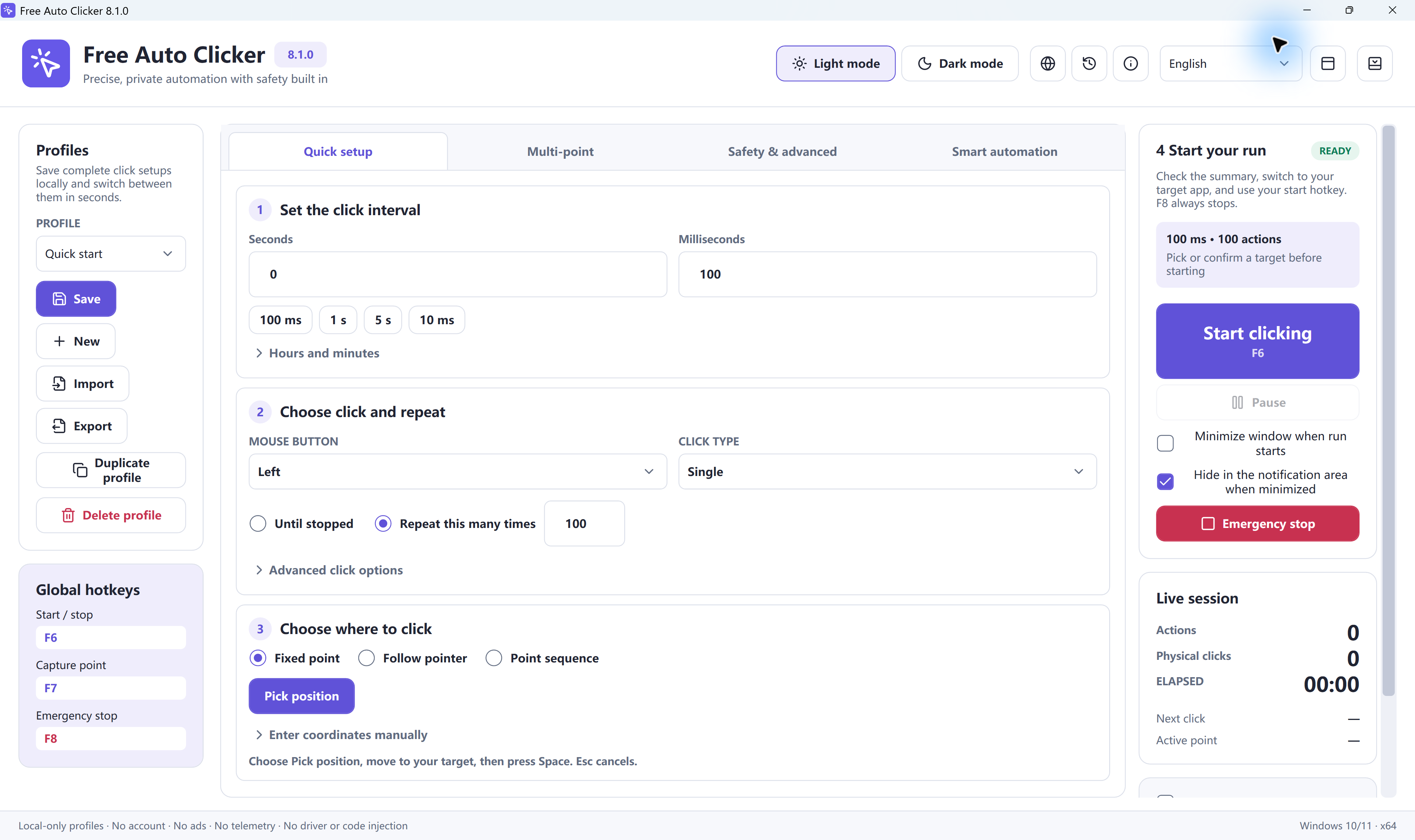
Keep any wanted settings with Profiles → Save, then select New. In Quick setup, set Hours = 0, Minutes = 0, Seconds = 1 and Milliseconds = 0.
Set the action and limits
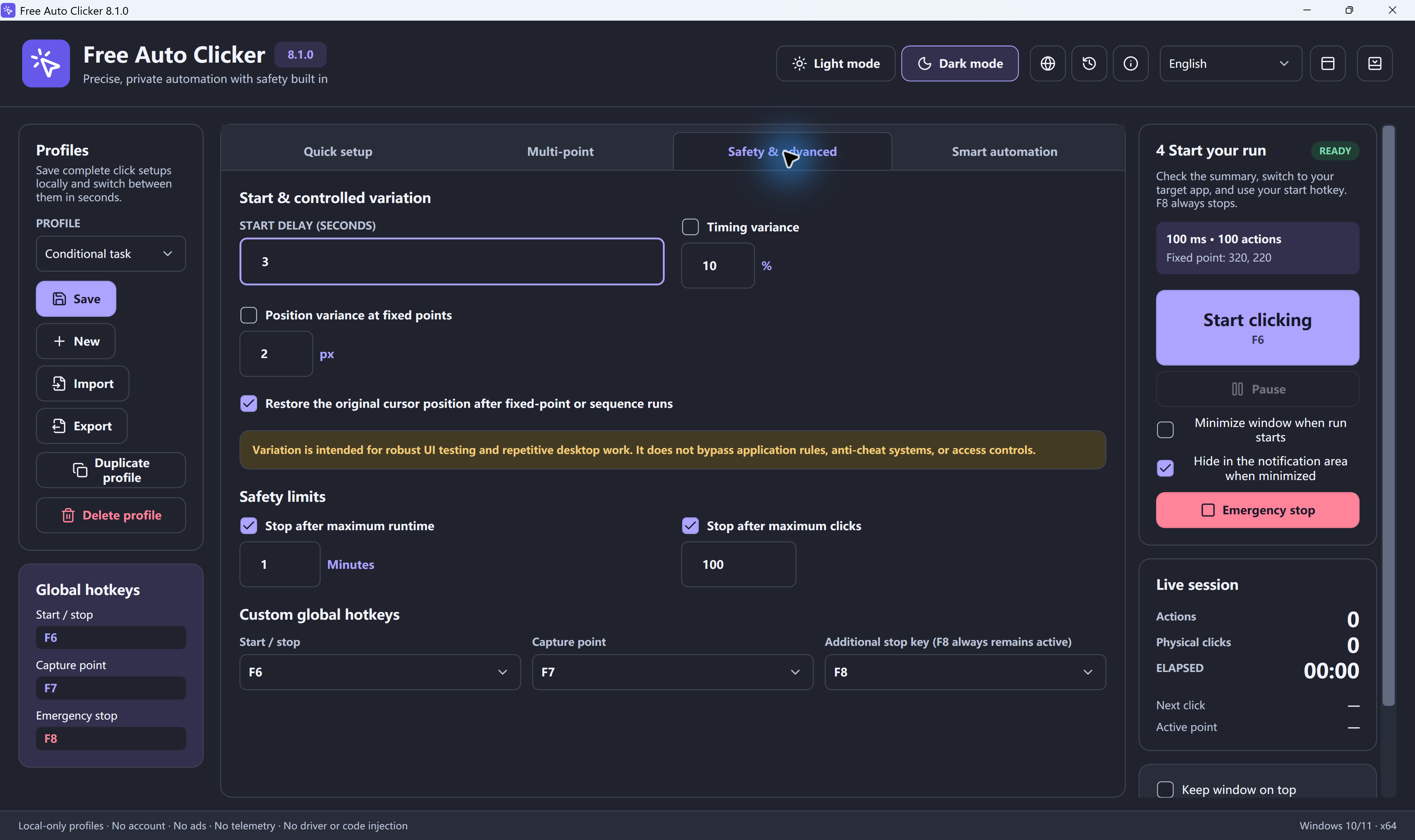
Choose Left / Single, Standard click, Press to start / stop and Repeat this many times = 5. In Safety & advanced, set Start delay (seconds) = 0. If the maximum-click limit is enabled, set it to 5; if the maximum-runtime limit is enabled, use 1 minute, its minimum.
Confirm the point
Choose Fixed point → Pick position, or open the picker with the default F7 shortcut. Move the pointer to the middle of the pad and press Space to confirm. Esc cancels. F7 opens the picker; it does not confirm the point.
Run and check the counter
Review the summary and current Start/stop key. Return to the unchanged browser window, keep the pad visible and press that key, F6 by default. Leave the pointer alone. Use F8 if the clicks land elsewhere.
Actual 8.1.0 controls. The screenshot shows example values; use the five-click settings below. Select the image to enlarge it.
Pass condition: Left changes from 0 to 5, Right stays at 0, and the run ends. Then try the same slow, limited setup on your intended foreground target. If the test pad works but that target does not, check the target’s input behavior before increasing the count or speed.
For more setup screenshots, use the complete first-run guide. Use the speed test when you need to compare measured CPS and gaps; its page timer does not stop an external clicker.
Reuse settings after checking the result
Profiles → Save stores a local profile. Export creates a separate .fac file for transfer or backup; Import reads one. Saving locally and exporting a file are different actions.
Before reusing a task, check the target position, button, click type, interval and limits. A different monitor, display scale or window layout can invalidate coordinates. Test again with a few clicks before increasing the repeat count.
Change the setting that explains the symptom
The wrong button arrives: check Mouse button and repeat the separate Left/Right test.
The count is higher than the repeat number: check Double or Triple. Repeat counts actions; the maximum-click limit counts physical clicks.
The target moves or a menu covers it: stop, restore the layout and pick the point again. Changing the interval will not repair a wrong position.
The run waits or ends unexpectedly: inspect Start delay, the finite repeat count and the independent safety limits. Use a fresh profile for a controlled comparison.
The Windows troubleshooting guide covers missed input, display changes and shortcut conflicts. Use only workflows that permit automation; the app does not bypass a target’s restrictions.
Auto mouse clicker questions
What does an auto mouse clicker do?
It repeats configured mouse actions. Free Auto Clicker 8.1.0 is a Windows desktop app: choose a mouse button, a click type, a target mode and a repeat limit. It uses the real pointer and normal Windows input, so keep the intended target visible in the foreground.
Can it click outside this website?
The Windows application can send mouse input to a permitted, visible foreground target outside this site. It does not guarantee that every application accepts that input. The separate online demo operates only on its own A, B and C targets and cannot control other tabs or apps.
Should I use Fixed point, Follow pointer or Point sequence?
Use Fixed point to repeat one saved position, Follow pointer to click at the pointer’s current location, and Point sequence to visit enabled rows in order. A fixed screen position does not identify a button after its layout changes. Recheck the target after moving, resizing or scrolling the window.
Can a sequence alternate between left and right clicks?
No. In version 8.1.0, Mouse button, Click type and Mouse action apply to the whole profile. Sequence rows have their own coordinates, Delay ms, Repeat and enabled state, but no button override. Use separate tested profiles or runs when the button must change.
Why can five repeats produce more than five mouse clicks?
The repeat count measures actions. One completed Single action sends one physical click, Double sends two and Triple sends three. Five completed Double actions therefore send ten physical clicks. The separate maximum-click limit can stop the run earlier; use Single for the five-click test on this page.
How do I save and reuse a mouse-clicking task?
Profiles → Save stores the current setup locally. Export creates a separate .fac file, and Import reads one. After switching or importing profiles, check the coordinates, mouse button, click type, interval, hotkeys and stop limits, then run a short test again.