How to Uninstall Free Auto Clicker on Windows
You can uninstall Free Auto Clicker through the standard Windows Apps settings. The current v8.1.0 release uses an installed 64-bit application and does not have a portable edition.
Download for WindowsWindows 10/11 · x64 · Free · v8.1.0
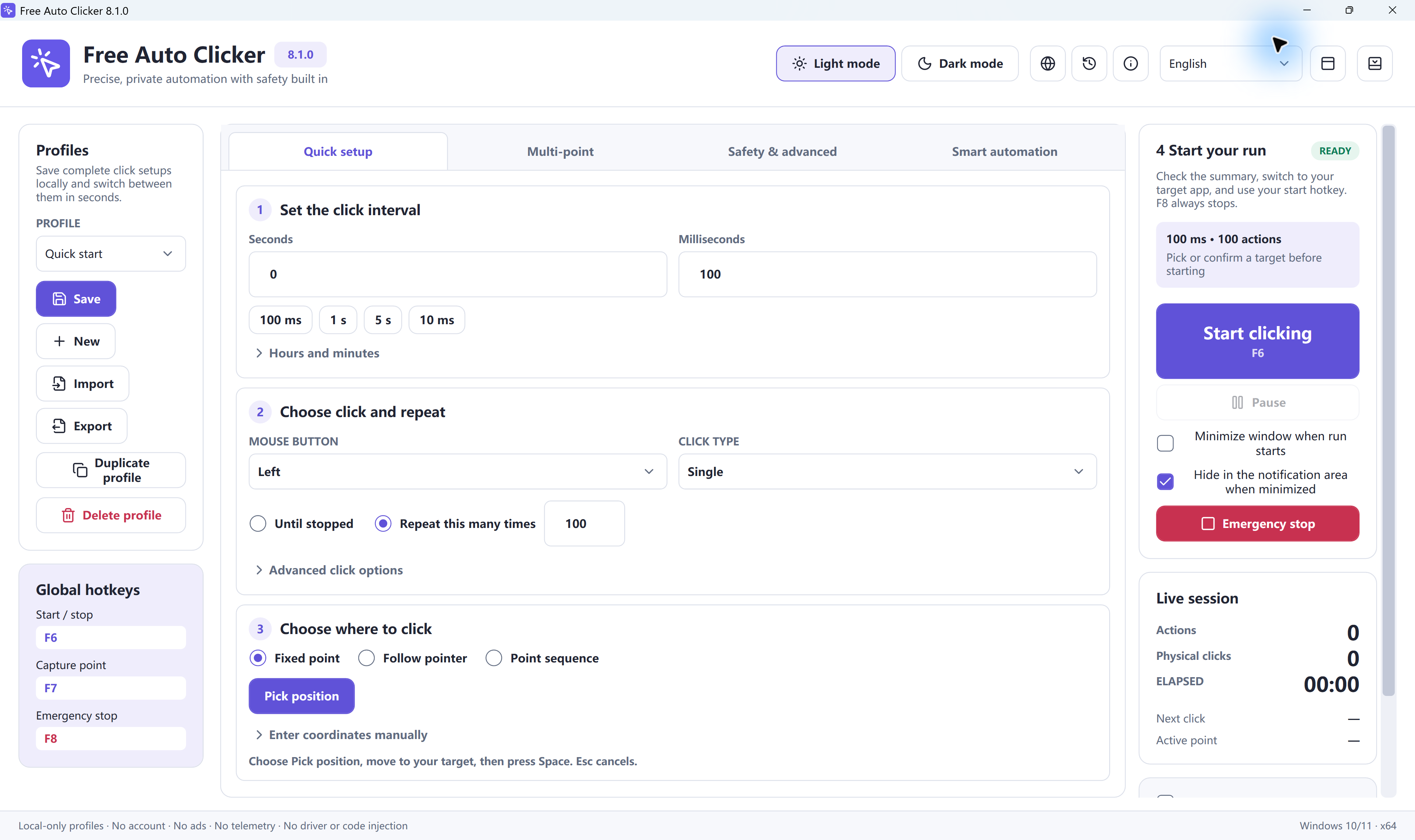
Before uninstalling
- Stop any active click sequence with F8, the fixed emergency stop.
- Close the Free Auto Clicker window.
- Save any X-Y coordinate lists you want to keep as FAC files.
- Close other Windows accounts that may be running the application.
Uninstall Free Auto Clicker on Windows 11
- Open Start and select Settings.
- Choose Apps, then Installed apps.
- Search for Free Auto Clicker.
- Open the menu beside the application and select Uninstall.
- Approve the Windows administrator prompt if it appears.
- Follow the removal instructions and restart Windows if requested.
Uninstall Free Auto Clicker on Windows 10
- Open Start and select Settings.
- Choose Apps.
- Open Apps & features.
- Select Free Auto Clicker and choose Uninstall.
- Approve the administrator prompt when Windows asks.
- Complete the removal steps.
What happens to saved FAC files?
FAC files are coordinate lists you saved manually. Windows may leave those user-created files in the folders where you chose to save them. Keep them if you may reinstall Free Auto Clicker, or delete them manually if they are no longer needed.
Do not delete unrelated folders while looking for saved scripts. Search for the specific FAC filenames or locations that you selected when saving them.
If the uninstaller does not start
- Confirm that Free Auto Clicker is fully closed.
- Restart Windows and try the Apps settings again.
- Use an administrator account when Windows requests permission.
- If the installation is damaged, download the official v8.1.0 installer, reinstall the application, and then run the standard uninstall process again.
Reinstall Free Auto Clicker
If you removed the application while troubleshooting, use only the official Free Auto Clicker download page. Verify the installer’s digital signature before approving the Windows administrator prompt.
Review the current version information and security and privacy facts before reinstalling.
Need help using the program?
If you do not need to uninstall and only want to correct a click sequence, see the complete setup and troubleshooting guide.
Ready to automate the clicks on your PC?
Free Auto Clicker repeats clicks at the interval you choose, in any Windows app.
Download for WindowsWindows 10/11 · x64 · Free · v8.1.0