
Some repetitive mouse tasks need to start at a specific local time, wait a few seconds before the first click, or stop immediately if the screen changes. Scheduling answers when to begin; hotkeys and limits determine how you remain in control.
Free Auto Clicker supports a next local start time, customizable global task controls, a start delay, maximum runtime, maximum click count, and a fixed F8 emergency stop. Configure the stop conditions before scheduling the start.
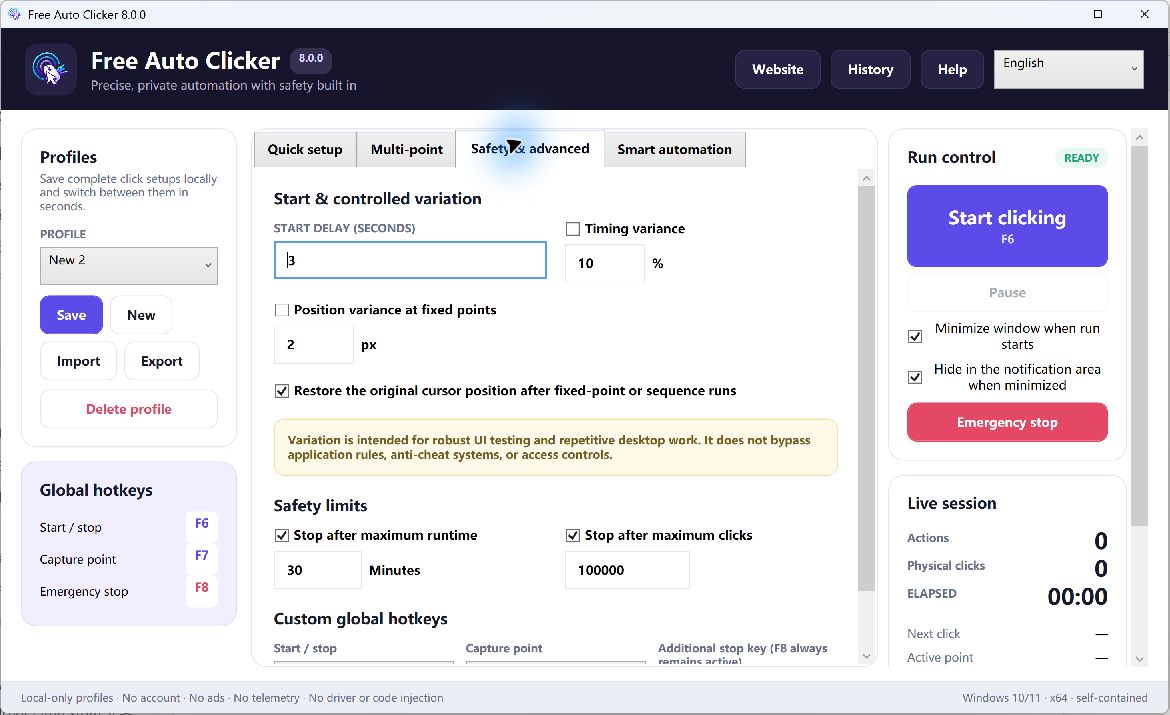
Table of Contents
Schedule one next local start time
The scheduler is designed to arm the configured task for its next start according to the computer’s local clock. Before enabling it:
- Build and test the click point or multi-point sequence.
- Confirm the computer’s date, time, and time zone.
- Select the next local start time.
- Verify the target window and expected starting screen.
- Add a maximum runtime, maximum click count, or finite repeat count.
- Keep the computer supervised if the task can affect important data.
Scheduling does not make a fragile sequence reliable. Window movement, focus changes, software updates, notifications, sleep, sign-out, and unexpected dialogs can still alter the screen.
Understand the default global hotkeys
- F6 toggles the configured task start/stop by default.
- F7 captures the current coordinate by default.
- F8 is the fixed emergency stop.
The configurable task hotkeys can be changed to avoid conflicts with another application. F8 remains a predictable emergency path. Test it before every new or materially changed workflow.
Why single-instance behavior matters
Two running copies could compete for global hotkeys and make the active task ambiguous. Free Auto Clicker allows one instance; launching it again restores the existing window. This keeps the controller and hotkey state in one place.
Set limits before the start time
Finite repeat count
Use a small known number when the task has a defined number of cycles. This is the clearest choice for a repeatable procedure.
Maximum click count
Set an absolute ceiling on click actions. This protects against an inner step repeating more often than expected.
Maximum runtime
Use a time boundary so a waiting condition or repeated sequence cannot continue indefinitely.
Start delay
A short delay gives you time to bring the intended window to the foreground after pressing the start hotkey. It does not verify the window by itself, so combine it with target-window binding where appropriate.
Choose an emergency-stop strategy
Keep one hand near F8 during the first run. Make sure no keyboard utility or hardware layer intercepts it. If the workflow moves the pointer rapidly, do not depend on reaching an on-screen Stop button.
For a scheduled task, decide in advance who will observe the first actions and what result requires an immediate stop. Do not schedule unattended activity that can send, delete, purchase, approve, or change production data.
Example: a scheduled local presentation check
A kiosk test machine needs to advance a local presentation control at a known time for a supervised rehearsal.
- Bind to the presentation window and capture a window-relative point.
- Run one manual click and verify the next state.
- Set the next local start time.
- Use a short start delay and a one-click limit.
- Keep an operator present with F8 available.
- After the rehearsal, disable the schedule and verify the task is no longer armed.
Combining a schedule with after-click keyboard input
Keyboard input adds a focus risk. Use only a safe, non-sensitive action in a clearly identified window. Add an after-click delay, test one cycle, and never include passwords, payment data, messages, or an Enter key that could submit an irreversible form.
Common scheduling failures
The PC sleeps or signs out
Desktop input requires an active interactive session. Do not assume a scheduled time will wake, sign in, or unlock Windows.
The target window is absent
Stop and fix the starting state. Do not weaken the target rule merely to make the schedule continue.
The system clock changes
Confirm the local date, time, and time zone, especially around travel or daylight-saving changes.
The workflow outlives its purpose
Disable a completed schedule. Save reusable settings as a clearly named profile rather than leaving an old task armed.
Pre-schedule checklist
- The task completed one limited manual test.
- The local start date, time, and time zone are correct.
- The target window and starting screen are ready.
- A click-count, runtime, or repeat ceiling is set.
- F8 works as the emergency stop.
- The scheduled action is permitted and reversible.
Frequently asked questions
What are the default hotkeys?
F6 toggles task start/stop, F7 captures a coordinate, and F8 is the fixed emergency stop.
Can the normal hotkeys be changed?
Yes. Configure them to avoid conflicts, then test the new keys before a long run.
Will the schedule wake or unlock my PC?
Do not assume so. Desktop automation needs an active, appropriate Windows session and the intended target state.
Should I use “until stopped” for a scheduled task?
Prefer a finite repeat, runtime, or click-count limit. A scheduled start should have an automatic stop boundary.
Learn how to configure timing and position variance and how to run a safe key action after a click.