
Repeating one click is simple. Repeating a complete path—open a panel, choose an option, wait for a result, and return to the starting screen—needs an ordered multi-point sequence. A mouse click recorder captures that path quickly, while the sequence editor turns the recording into a controlled, repeatable workflow.
This guide shows both ways to build the sequence and, more importantly, how to review it before replaying anything.
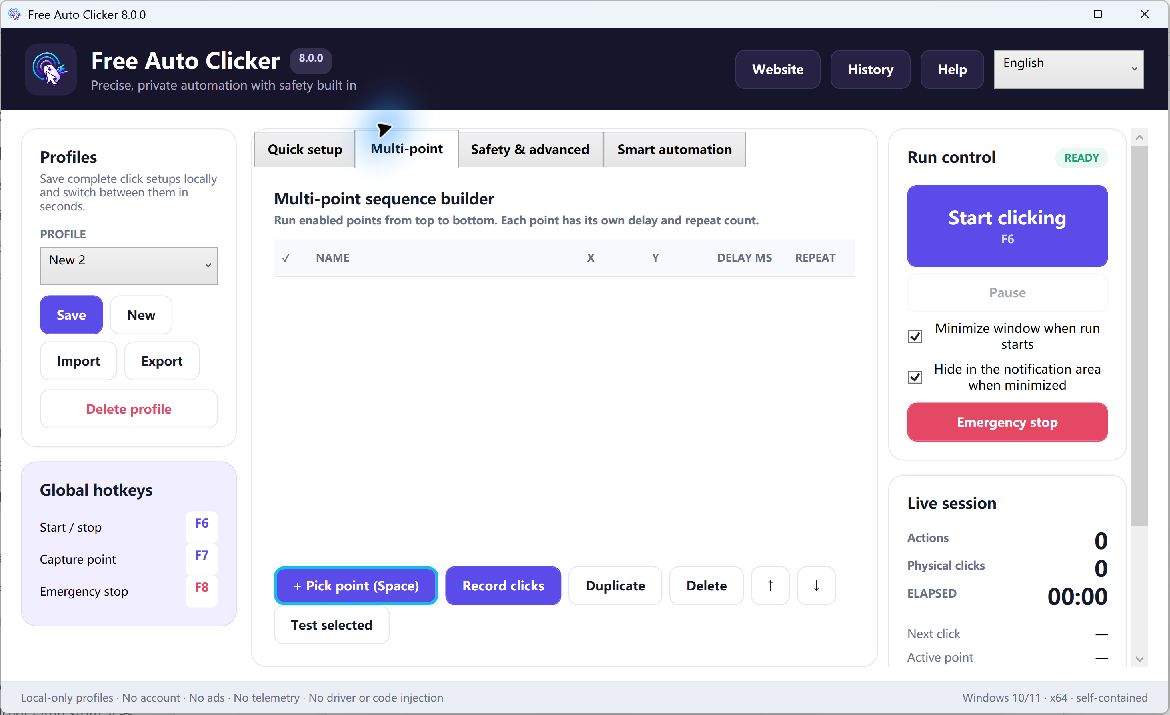
Table of Contents
What is a multi-point click sequence?
A multi-point sequence is an ordered list of actions. Each point can store a name, X/Y position, delay, repeat count, mouse button, click action, and enabled state. The list runs in order and follows the task’s overall repeat and safety rules.
This is useful for small, permitted desktop workflows such as exercising a local test interface, advancing controls in your own presentation, or repeating a harmless sequence in software you are authorized to automate.
Method 1: add click points manually
- Open Free Auto Clicker and choose the multi-point mode.
- Add a new point and give it a purpose-based name.
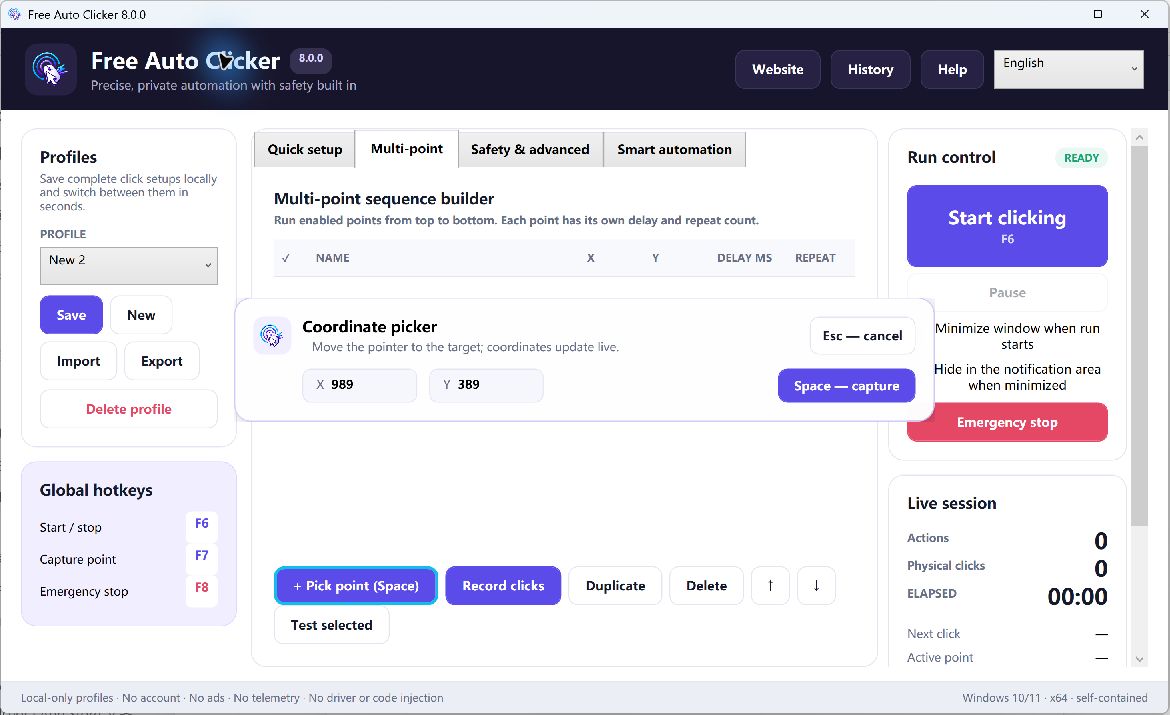
- Use the coordinate picker or enter X and Y values.
- Select the mouse button and action.
- Set the delay and repeat count for that point.
- Add the remaining points in the required order.
Manual entry is best when the sequence is short or every step needs deliberate timing. Names such as “Open menu” and “Close test dialog” are easier to audit than “Point 1” and “Point 2.”
Method 2: record clicks as you perform them
- Prepare a harmless starting state in the target application.
- Start click recording from the multi-point screen.
- Demonstrate one short workflow at normal speed.
- Stop recording.
- Return to the point list and inspect every captured row.
Recording is faster for discovering the order of several points. It does not understand your intent, so accidental clicks and incidental pauses may also be captured. Treat the result as a draft.
Edit the sequence before running it
- Delete accidental or unwanted selected rows.
- Duplicate a point only when the repeated action is intentional.
- Move points up or down to correct the order.
- Replace demonstration pauses with deliberate per-point delays.
- Set a finite repeat count for the first complete run.
- Disable uncertain points until they have been tested.
- Use “test selected” to verify one point at a time.
Keep points aligned with a moving window
Absolute screen coordinates remain fixed on the desktop. If the target window moves, the saved point can hit the wrong control or another application. Bind the workflow to the intended process and window title, then use window-relative coordinates where appropriate.
Window-relative points follow the target window’s position, but they cannot compensate for an internal layout redesign, changed display scaling, or a different application language. Retest after those changes.
Replace fragile delays with a visible condition
A fixed delay can be unreliable when the target app sometimes loads slowly. If a stable status indicator changes to a known color, a pixel-color condition can wait for that state before continuing. Choose a stable interior pixel rather than text, shadows, animation, or a hover-sensitive edge, and configure a timeout.
Add safety limits
Use a start delay to focus the correct target before the first click. Set a maximum runtime, maximum click count, or finite repeat rule. The default F6 global hotkey toggles the task start/stop, F7 captures a coordinate, and F8 remains the fixed emergency stop. Hotkeys can be customized, but the emergency stop should stay easy to reach.
Save and validate the workflow
After one successful limited run, save the settings as a named local profile. Export a .fac copy when you need a backup or transfer. Reload the profile and confirm the point order and limits. On another PC, recheck window layout, scaling, and every coordinate before running.
Replay checklist
- The starting screen and target window are correct.
- Every point has been reviewed and named.
- Potentially destructive controls are not included.
- The first run has a low repeat count and a hard stop.
- F8 has been tested before the full sequence.
Frequently asked questions
Can I record more than one mouse position?
Yes. Recording creates an ordered list of click points that you can edit before replaying.
Can I change a recorded point?
Yes. Review its name, coordinates, delay, repeat count, mouse action, order, and enabled state in the sequence editor.
What if the picker covers the target?
Drag the picker from an unused part of its window, move it aside, and then capture the point.
Should I replay the recording immediately?
No. Test individual points, add limits, and run one supervised cycle first.
Compare a click recorder with a configured auto clicker, or learn how window-relative coordinates work.